Salut tout le monde! Ever felt like you needed a spare computer, just for kicking the tires on a new piece of software, or maybe testing something a little… risky? Well, that's where virtualization, and more specifically, running Windows 10 in VirtualBox, comes to the rescue! And to get there, you need a Win10 ISO. Alors, on y va!
Why VirtualBox and a Win10 ISO, vraiment?
Okay, so why all the fuss? Imagine you're a chef, and you want to try a new recipe. Do you immediately throw out all the food in your kitchen and start from scratch? Non, bien sûr que non! You'd probably use a small pan, a few ingredients, and test it out first, right? VirtualBox and a Win10 ISO are kind of like that small pan for your computer. It allows you to create a virtual computer, completely separate from your main system.
Think of VirtualBox as a chameleon. It blends into your existing operating system (Windows, macOS, Linux – it doesn't care!), and then presto! It can host another operating system inside it. Mind-blowing, non?
So why Windows 10? Well, it's still super common, lots of software is made for it, and, let's be honest, sometimes you just need that familiar Windows environment. And the ISO? It’s like a digital disk, a perfect image of Windows 10, ready to be installed in your virtual machine.
Here's why it's so génial:
- Safe Testing Ground: Downloaded a shady-looking file? Want to test out some beta software that might crash? Do it inside VirtualBox! If something goes wrong, you can just delete the virtual machine and start over. No harm, no foul.
- Run Old Software: Got that ancient game you can't live without that refuses to work on your modern OS? A virtual Windows 10 machine could be your time machine!
- Cross-Platform Compatibility: Say you're a Mac user but need to run a Windows-only program for work. Bam! VirtualBox to the rescue. It's like having a Windows computer hiding inside your Mac. Cool, eh?
- Experimentation Without Risk: Want to learn about operating systems, try different settings, or even learn how to break and fix Windows? A virtual machine is your personal sandbox.
Getting Your Hands on a Win10 ISO - C'est Facile!
Alright, so how do you actually get this magic Win10 ISO? Luckily, Microsoft makes it pretty straightforward. They even want you to test Windows! (Well, maybe not break it completely, but you get the idea.)
Where to Find It (Legally, Of Course!)
The official source is the Microsoft website. Just Google "Download Windows 10 ISO" and look for the Microsoft link. Make absolutely sure it’s the official source. You don't want to download something dodgy with extra… surprises. That's like accepting candy from a stranger. Pas bon!
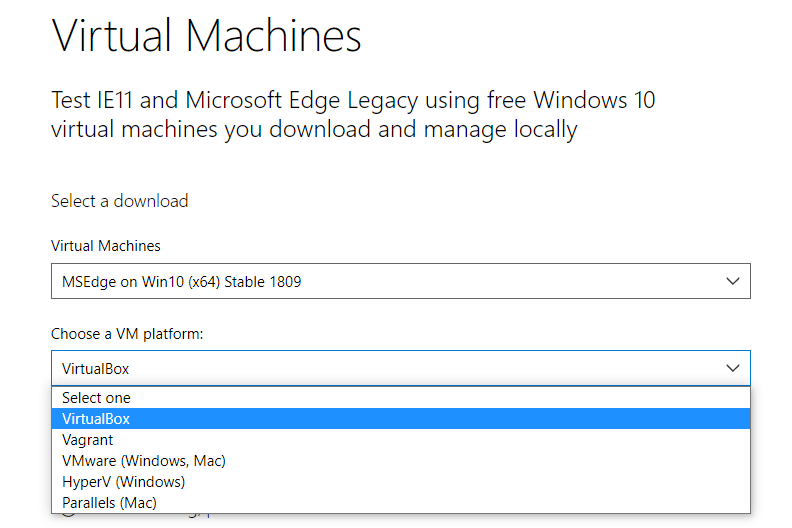
The website will guide you through the process. You'll likely need to choose the version of Windows 10 you want (Home or Pro, usually). Don't worry too much about this initially; you can often change this later, or experiment with different versions in different virtual machines. C'est la liberté!
Burn It, or Don't Burn It (It's a Virtual World!)
In the olden days, you would burn the ISO to a physical DVD. But we're living in the future! With VirtualBox, you don't need to do that. You simply point VirtualBox to the ISO file during the virtual machine setup. Easy peasy, lemon squeezy!
Setting Up Windows 10 in VirtualBox - Un Jeu d'Enfant!
Okay, you've got your VirtualBox installed (if not, go download it – it's free!), and you've got your shiny new Win10 ISO. Now comes the fun part: creating your virtual machine!
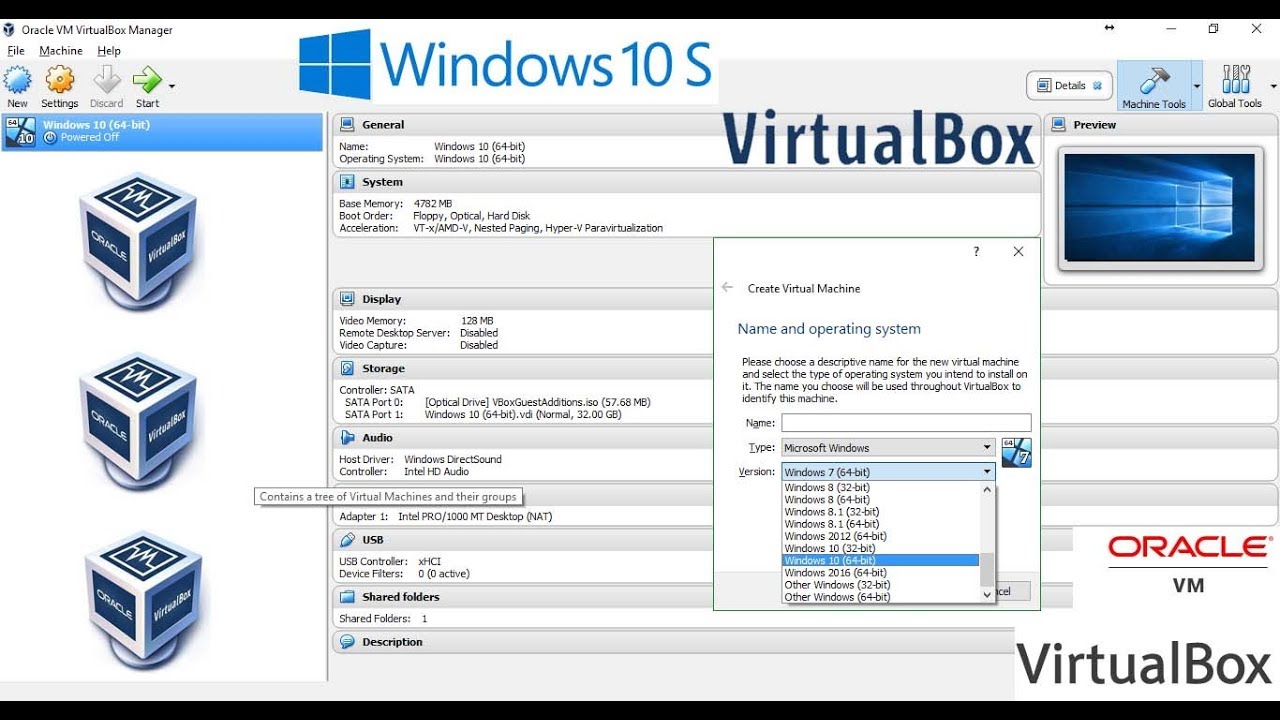
- Open VirtualBox: The main VirtualBox window will appear. It might look a bit intimidating at first, but don't worry, it's much friendlier than it looks.
- Click "New": This button starts the virtual machine creation wizard.
- Give it a Name: Choose a name for your virtual machine. Something descriptive, like "Windows 10 Test" or "Windows 10 Legacy Games".
- Select Operating System: Choose "Microsoft Windows" as the type, and then "Windows 10 (64-bit)" or "Windows 10 (32-bit)" depending on the ISO you downloaded. If you’re unsure, go for the 64-bit version. It’s generally better.
- Allocate Memory (RAM): This is important! Give your virtual machine enough RAM to run smoothly. 2GB (2048MB) is a good starting point, but if you have plenty of RAM on your main computer, you can give it more. Just don't allocate so much that your main computer starts to slow down. It's a balancing act!
- Create a Virtual Hard Disk: Choose "Create a virtual hard disk now" and click "Create".
- Choose a Hard Disk File Type: VDI (VirtualBox Disk Image) is the default, and it's usually a good choice.
- Choose Storage on Physical Hard Disk: "Dynamically allocated" is usually the best option. This means the virtual hard disk file will grow as you add data to the virtual machine, rather than taking up a huge chunk of space on your hard drive right away.
- Choose the Size and Location of the Virtual Hard Disk: 50GB is a good starting point for the size. Choose a location on your hard drive where you have plenty of free space.
- Click "Create": Your virtual machine is now created! But it's still just an empty shell.
Installing Windows 10 in Your Virtual Machine - Presque Fini!
Now comes the final step: installing Windows 10 from the ISO.
- Select Your Virtual Machine: In the main VirtualBox window, select the virtual machine you just created.
- Click "Start": This will power on your virtual machine.
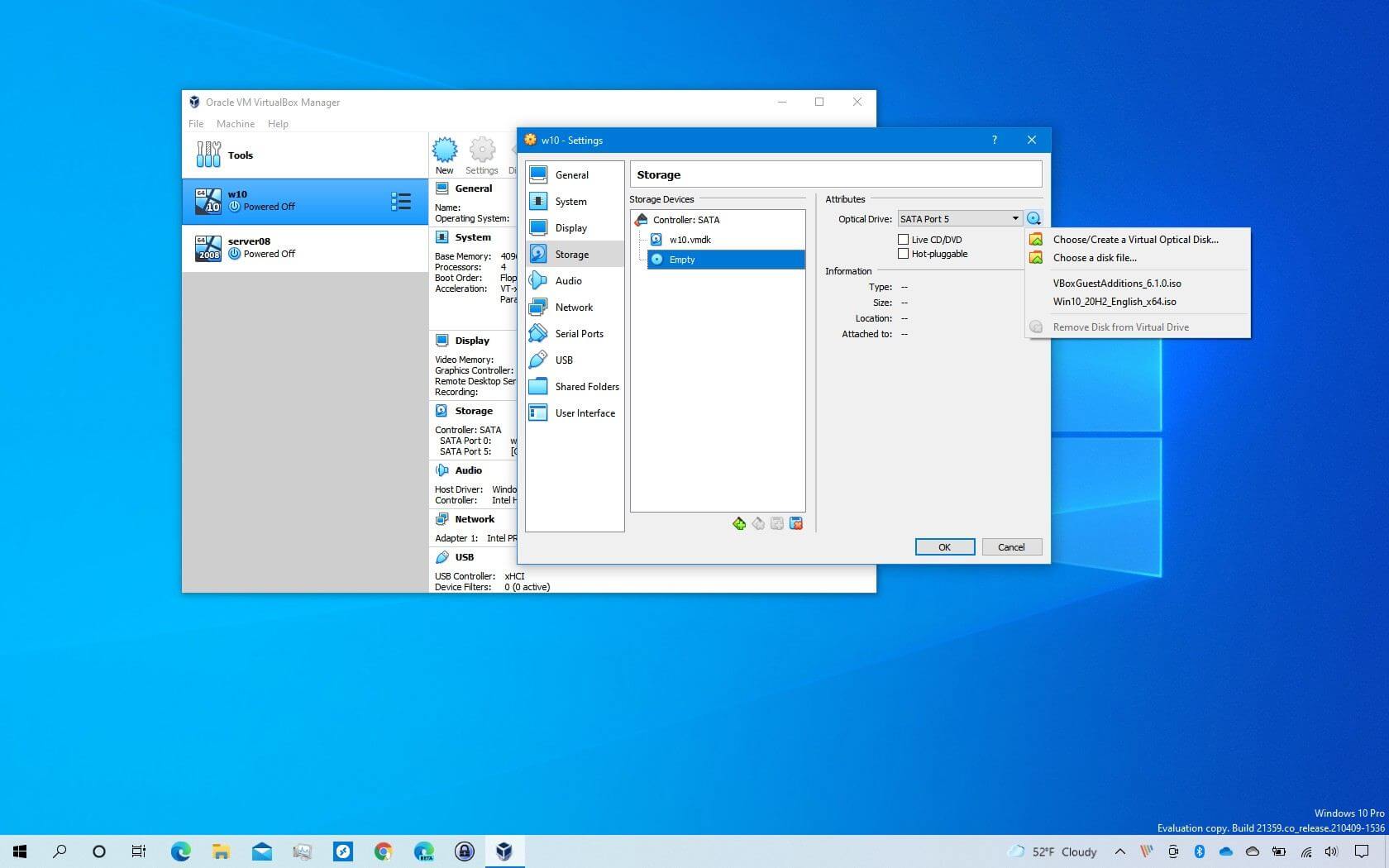
- Select Startup Disk: VirtualBox will ask you to select a startup disk. Click the little folder icon and browse to the Win10 ISO file you downloaded.
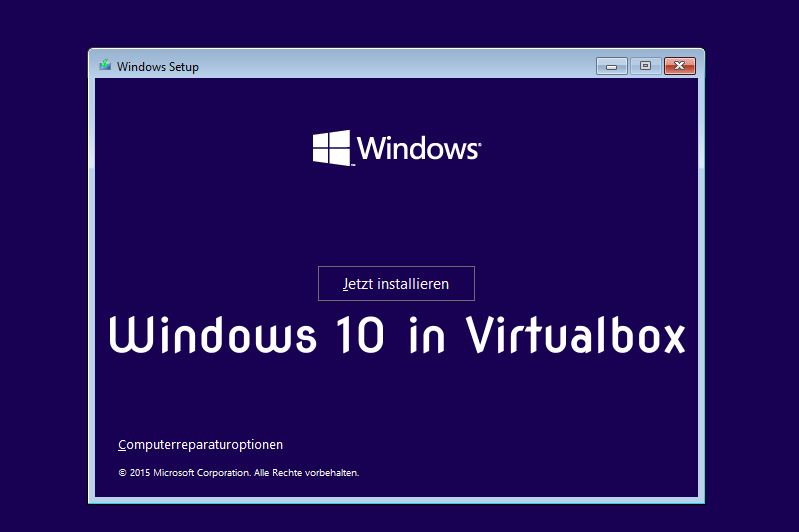
- Follow the Windows 10 Installation Prompts: This is just like installing Windows 10 on a real computer. Choose your language, keyboard layout, and accept the license agreement.
- Choose "Custom: Install Windows only (advanced)": This will give you the most control over the installation.
- Select the Virtual Hard Disk: Choose the virtual hard disk you created earlier and click "Next".
- Wait for the Installation to Complete: This can take a while, so grab a coffee or a croissant! Patience est mère de toutes les vertus!
After the Installation - Bon Travail!
Once Windows 10 is installed, you'll need to go through the usual setup process (creating a user account, setting your preferences, etc.). After that, you'll have a fully functional Windows 10 environment running inside VirtualBox. Félicitations!
Installing Guest Additions - Pour Améliorer l'Expérience!
To make your virtual machine even better, install the VirtualBox Guest Additions. This will improve graphics performance, allow you to share folders between your host and guest operating systems, and enable seamless mouse integration. It's like giving your virtual machine a turbo boost!
To install the Guest Additions, go to the "Devices" menu in the virtual machine window and select "Insert Guest Additions CD image…". Then, follow the prompts to install the software inside the virtual machine.
Final Thoughts - À Vous de Jouer!
So, there you have it! Running Windows 10 in VirtualBox is a fantastic way to experiment, test software, and run legacy applications without risking your main computer. It's like having a playground for your tech skills! Don't be afraid to experiment, break things (it's a virtual machine, remember?), and learn something new. Alors, qu'est-ce que vous attendez? Go create your virtual world! Et amusez-vous bien!






![Instalar Windows 10 en VirtualBox [Paso a paso]](https://www.profesionalreview.com/wp-content/uploads/2015/10/windows10-virtualbox-paso5.jpg)

![Instalar Windows 10 en VirtualBox [Paso a paso]](https://www.profesionalreview.com/wp-content/uploads/2015/10/windows10-virtualbox-paso3-7.jpg)

