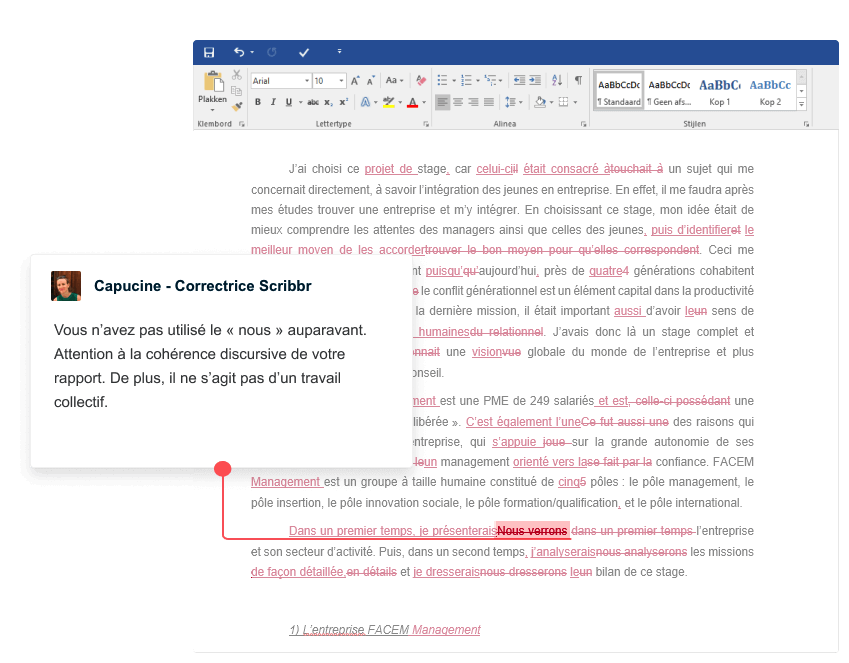
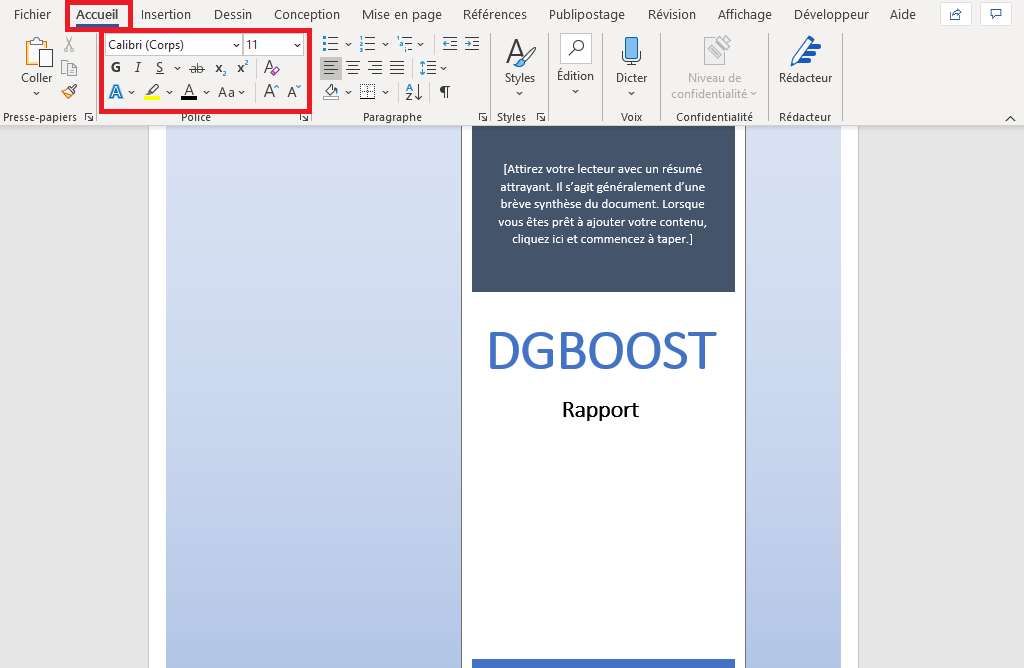
Okay, picture this. Last week, I was burning the midnight oil (as usual, sigh), trying to finalize a report for my boss, Madame Dubois. It was all meticulously crafted, data perfectly charted, the arguments airtight. Except... the page numbering was all messed up! The title page was showing as page 1, and naturally, Madame Dubois, a woman who breathes spreadsheets and exhales accuracy, would not be impressed. Let’s just say my heart did a little tap dance of panic. Anyone ever been there? (Don’t lie, we’ve all been there.)
That harrowing experience got me thinking about something super common, and surprisingly frustrating: getting your page numbering right in OpenOffice (or LibreOffice, they’re practically twins in this case) when you want a title page that doesn't count. Because who wants "Page 1" glaring from their beautifully designed cover? Nobody, that's who!
The Cover Page Conundrum: Why is it always page 1?!
The default behavior of OpenOffice, bless its heart, is to start numbering from the very first page. Which is fine... unless you have a snazzy cover page that you don't want numbered. It's like the software is politely but stubbornly insisting that even your artistic masterpiece deserves a numeric value. (Seriously, OpenOffice, let the art breathe!)
Breaking Free From the Default: Page Styles to the Rescue!
The secret weapon to conquer this numbering nightmare lies in page styles. Think of them as templates that dictate the layout and formatting of different sections of your document. (Yes, it sounds a bit intimidating, but trust me, it's easier than wrestling a cat into a sweater.) Here’s the basic rundown:
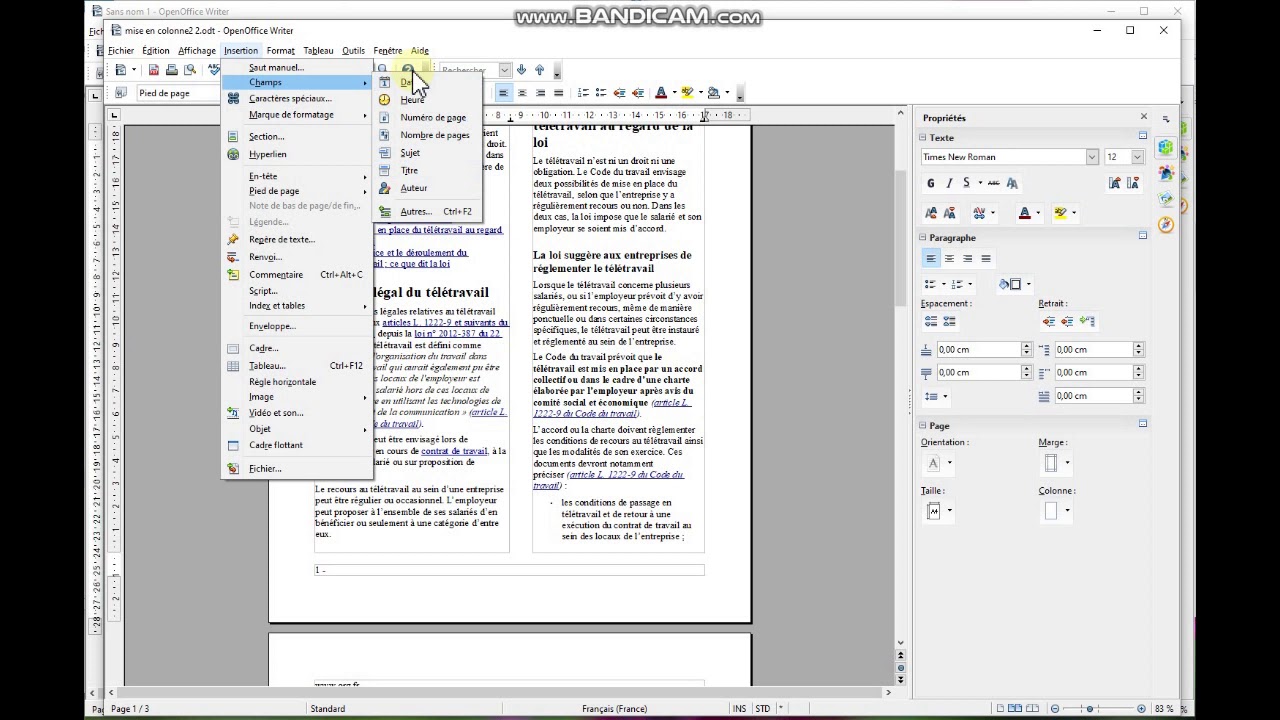
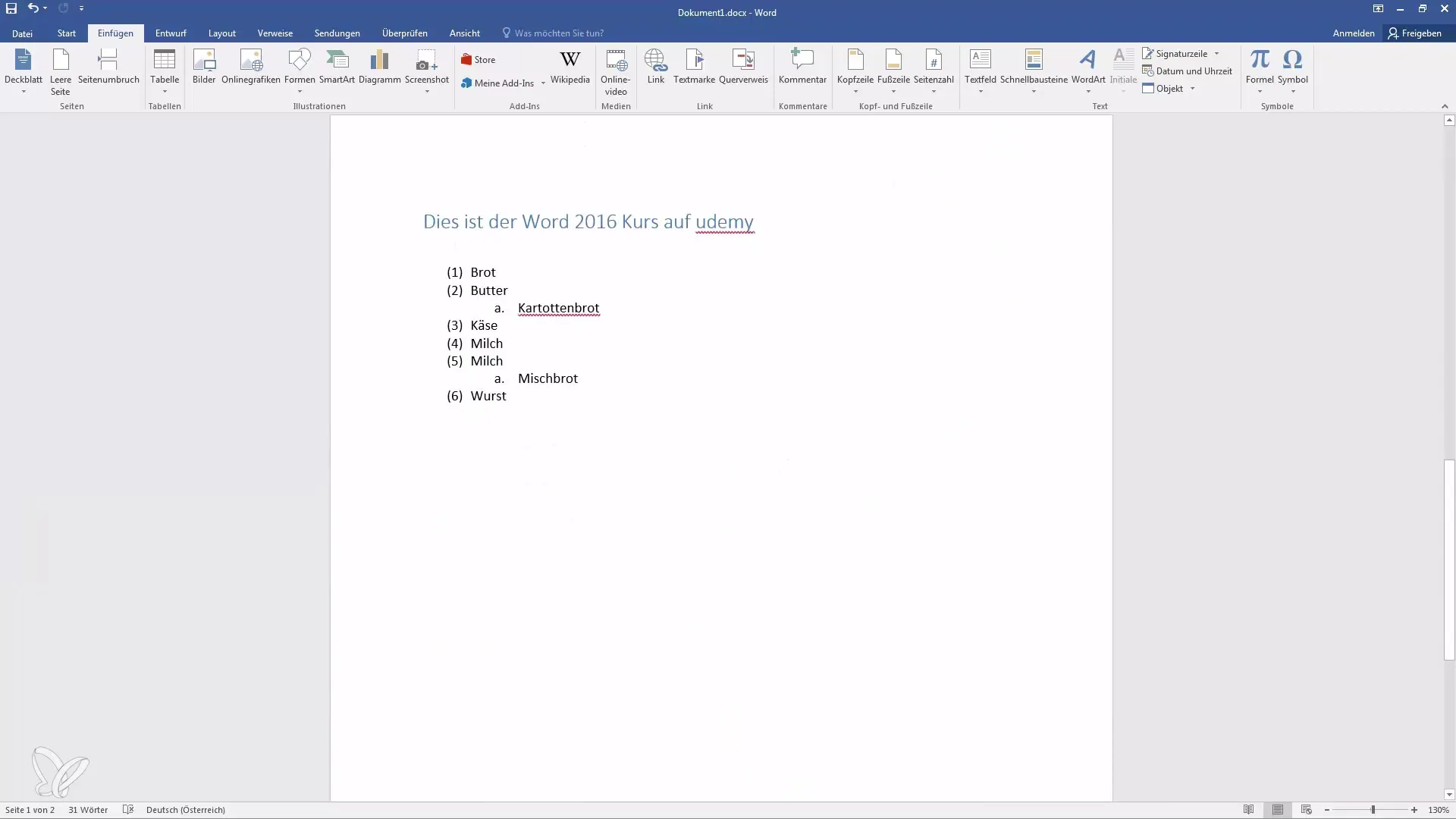
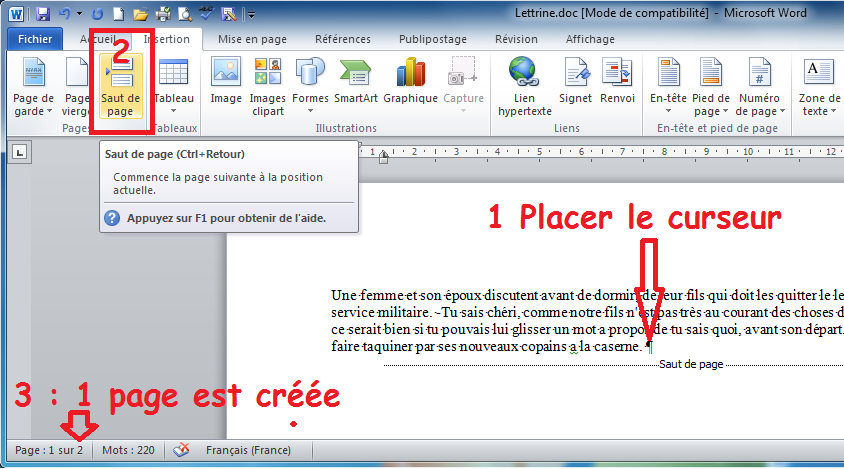
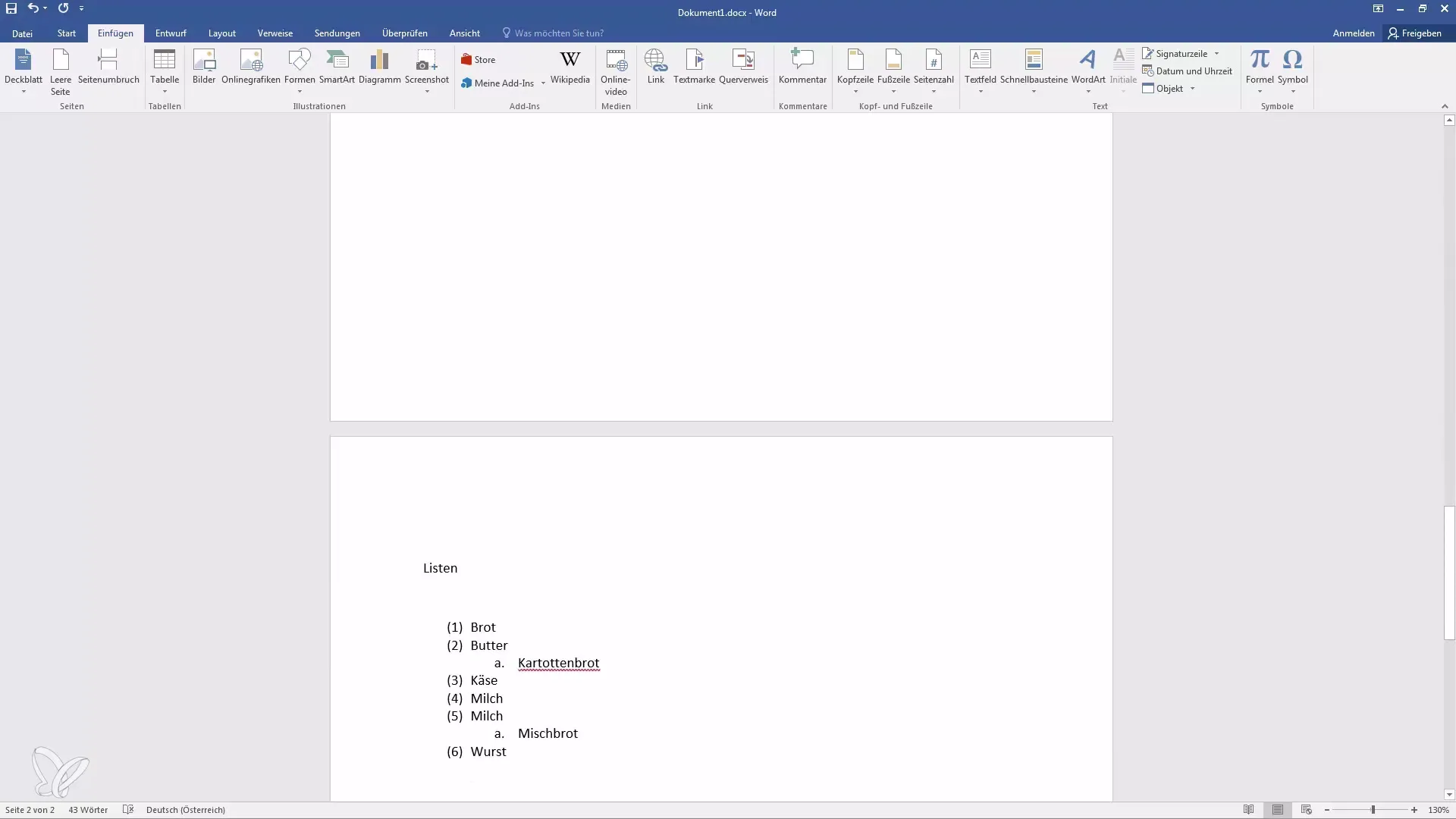
- Insert a Page Break: After your cover page, insert a page break (Insert > Manual Break > Page Break). This is crucial.
- Assign a New Page Style: In the “Insert Break” dialog box, select “With Style” and then choose a page style that isn’t “First Page.” (More on creating these styles below!). Usually, “Default” or “Text Body” is fine.
- Restart the Numbering: This is where the magic happens. Go to Format > Page. In the “Organizer” tab, ensure the “Next Style” is set to the page style you want to use after the current one. Then, in the “Page” tab (still in the Format > Page dialog box!), set the “Numbering” option to your desired format (e.g., 1, 2, 3) and, most importantly, check the box that says "First page number." Enter "1" in that box. This is the key to restarting the count!
Creating Custom Page Styles (For the Truly Ambitious!)
If you're feeling adventurous (or if the default page styles just aren't cutting it), you can create your own! Right-click anywhere in the Styles and Formatting window (press F11 to open it if it’s not visible), select “New,” and then customize everything from margins to headers and footers. Make sure to not include page numbers in your "First Page" style. (Pro-tip: label it something memorable like "Cover Page - No Numbering" to avoid future confusion.)
Important Note: Always double-check your work! It's infuriating to think you’ve cracked the code only to discover a stray number lurking where it shouldn’t. Print preview is your friend!
So there you have it! No more title page tyranny. Go forth and create beautifully formatted documents, free from the shackles of unwanted page numbers. And remember, if all else fails, blame the software... I won’t judge.



![[Docx] Exemple page de garde pour un rapport de stage](https://blogger.googleusercontent.com/img/b/R29vZ2xl/AVvXsEgmnWnbdwS8FOHbZvp15Ymxl5bVFbhpilWz5Zh_uQZ6LLodtCrYTUQTiCfYPdaa1mpNurr6FoSfTdDSFsYNsuxBngfae9PM6rP1x2RZUfqtSq86lMCscMXmSA_SqcByK6QMP1F60up16xIn/s1600/page+de+présentation+mémoire+page+de+présentation+mémoire+page+de+présentation+mémoire+page+de+présentation_mémoire.PNG)


![[DOC] Exemple page de garde word pour un rapport PFE ~ StagePFE](https://3.bp.blogspot.com/-h_lQMTlvjg4/VU37ec0T8GI/AAAAAAAACkQ/AdJo-OlWKrM/s1600/page%2Bde%2Bgarde%2Bword%2Bde%2Bpfe%2Bmodele%2Bpage%2Bde%2Bgarde%2Bformat%2Bword%2B2015.png)