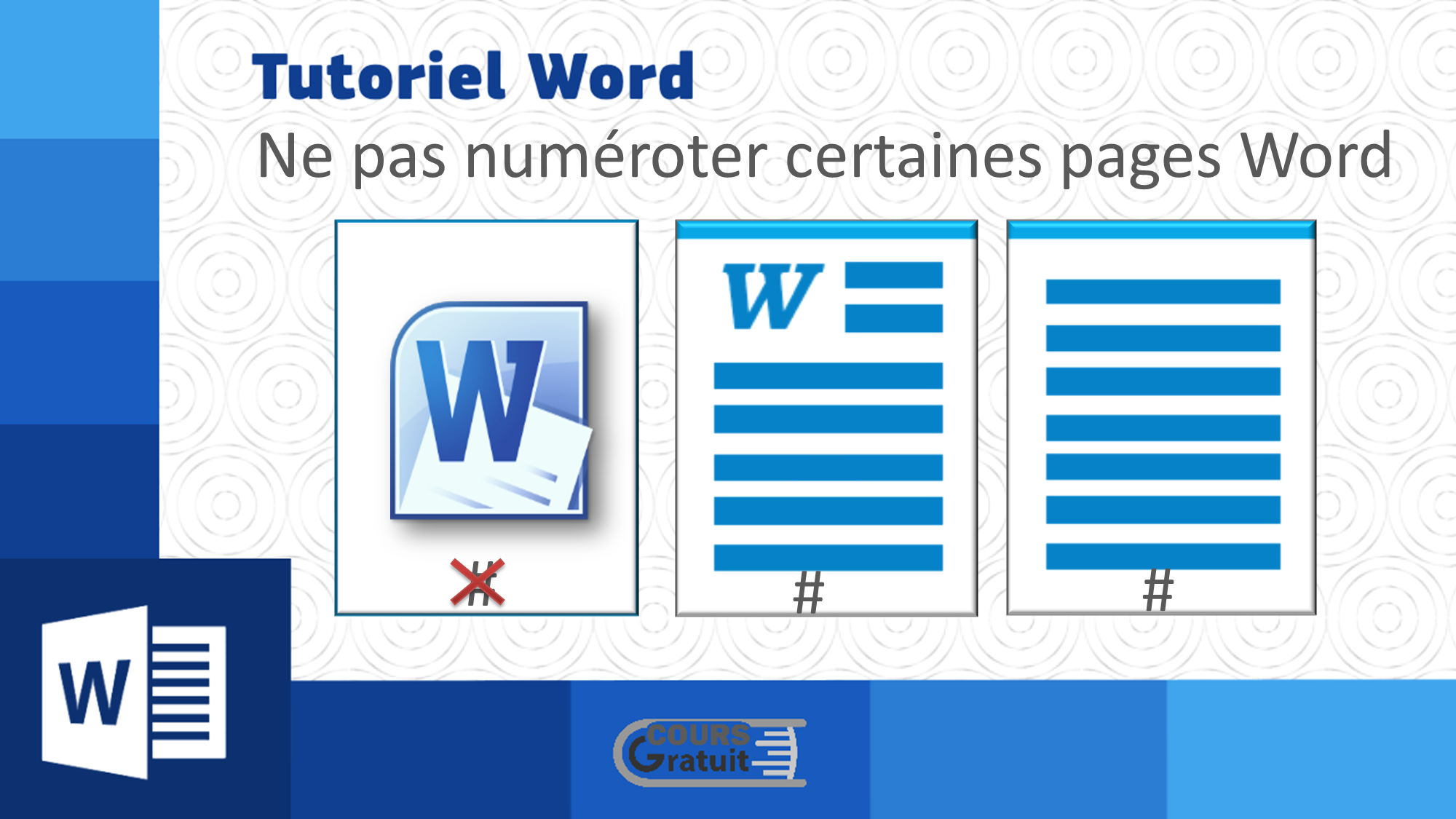
Okay, picture this: it's 3 AM, you're fuelled by coffee and sheer desperation. Your thesis is due in, like, five hours. You're frantically checking the formatting – double-spaced? Check. Font size? Check. Page numbers... WAIT A MINUTE! Why is my page number on the cover page? The cover page is supposed to be majestic and un-numbered, a beacon of academic purity! Sound familiar? Yeah, we've all been there. That's why we need to talk about the art of hiding page numbers on your Word cover page.
Because, let's be honest, nobody wants a big "1" glaring back at them from their carefully designed title page. It's just... wrong.
The Section Break Secret
The key to this magic trick? Section breaks. Word thinks your document is one long, continuous thing unless you tell it otherwise. Section breaks allow you to treat different parts of your document independently – which is exactly what we want for our cover page.
Here's the gist:
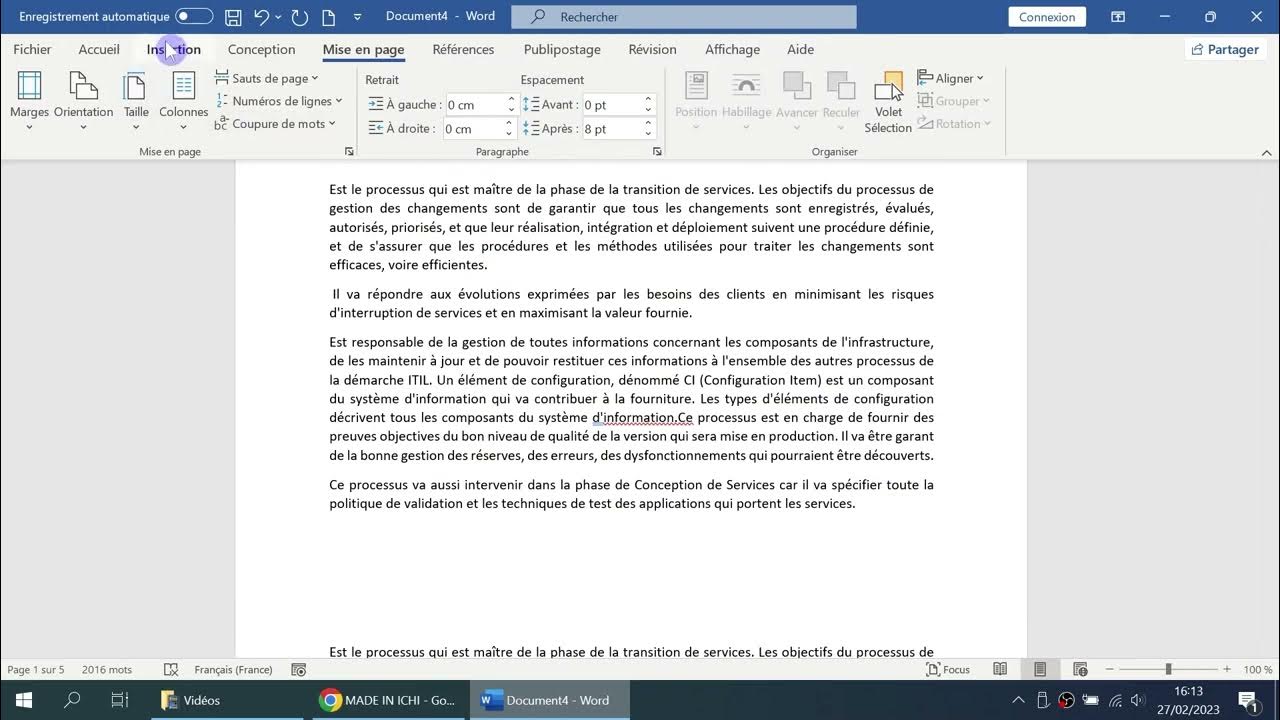
- Insert a Section Break (Next Page): Go to "Layout" (or "Mise en Page" if you're rolling with the French version), then "Breaks" ("Sauts de page"), and choose "Next Page" ("Page suivante"). This tells Word: "Okay, everything after this point is a new section."
- Unlink the Header/Footer: Double-click in the header or footer area of your second page (the first page after your cover page). Look for the "Link to Previous" ("Lier au précédent") option in the Header & Footer Tools Design tab (or "Outils En-tête et pied de page Création"). Uncheck it! This is crucial. If you don't do this, anything you do to the footer on page 2 will also affect page 1, defeating the entire purpose.
- Remove the Page Number on Page 1 (the Cover Page): Now, with the header/footer unlinked, you can simply delete the page number from the footer of your cover page. Voila! It vanishes like a magician's rabbit.
Pro Tip: If you're using a header, you'll need to unlink that too! The process is exactly the same.

Starting Page Numbers at the Right Place
So, you've vanquished the rogue page number from your cover. But now your second page (the actual beginning of your document) is likely numbered "2." Not ideal. We need to tell Word to start counting from "1" on that page.
Here's how:
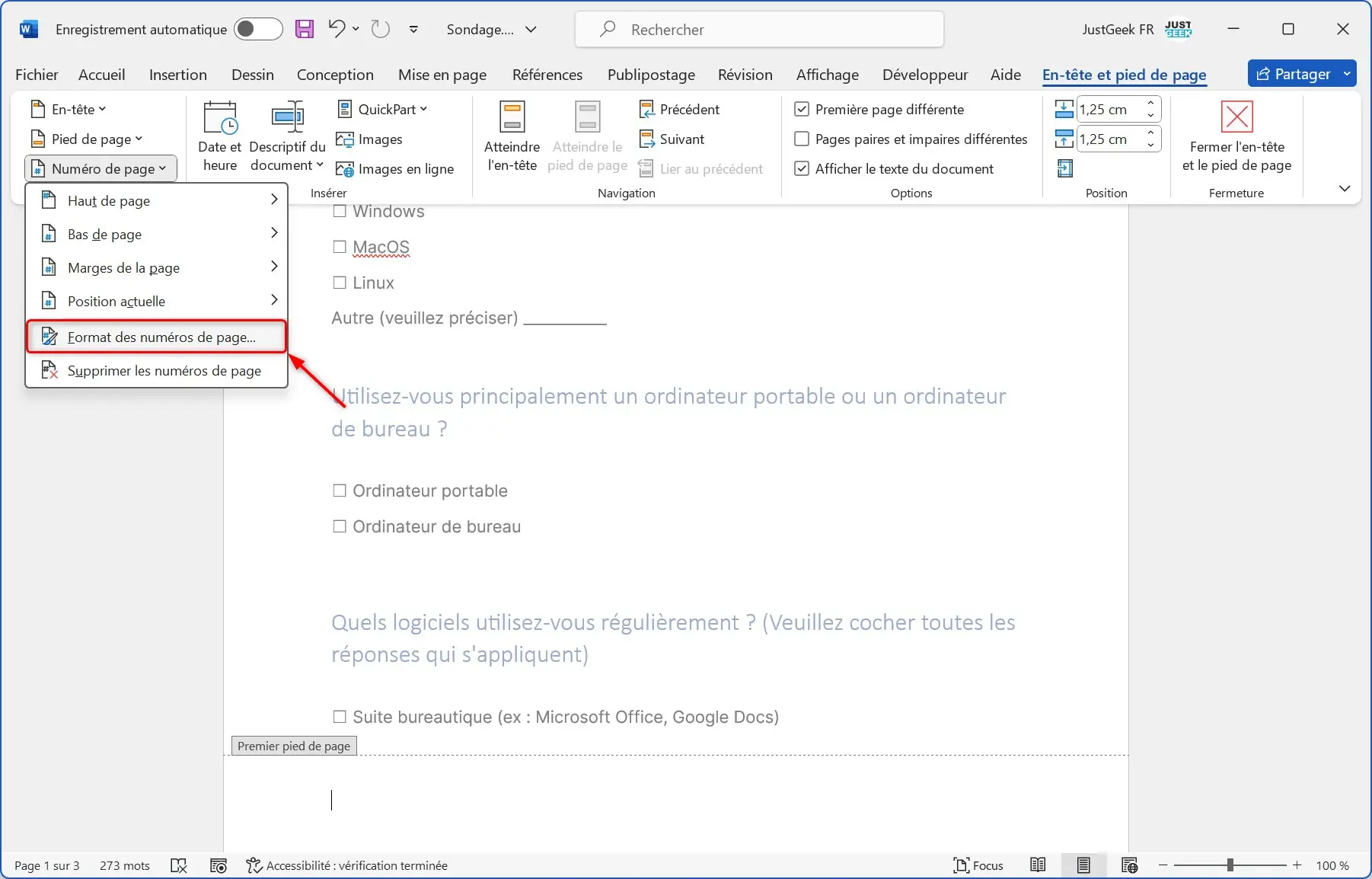
- Go to the Footer of Page 2: Again, double-click in the footer area.
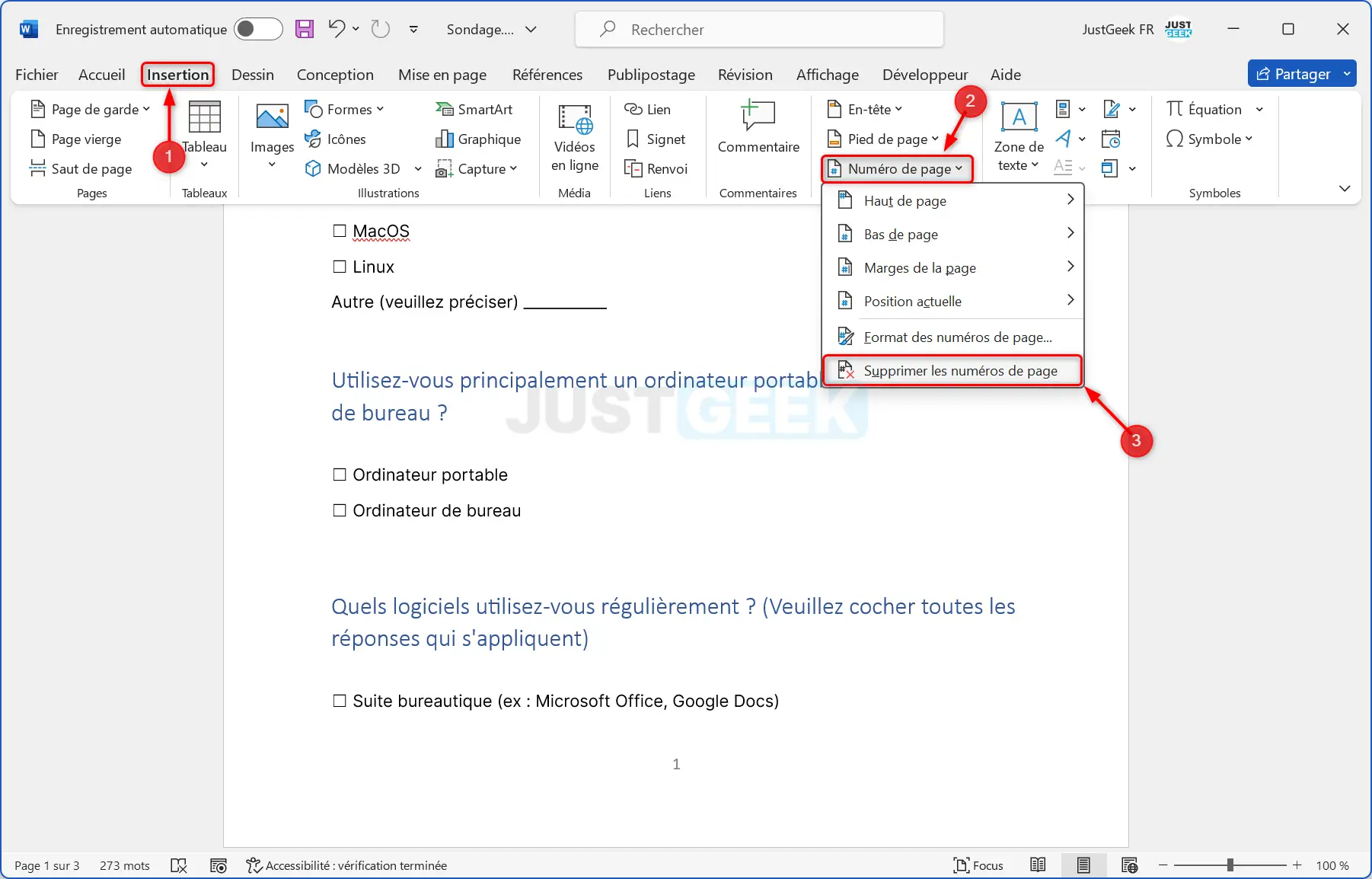
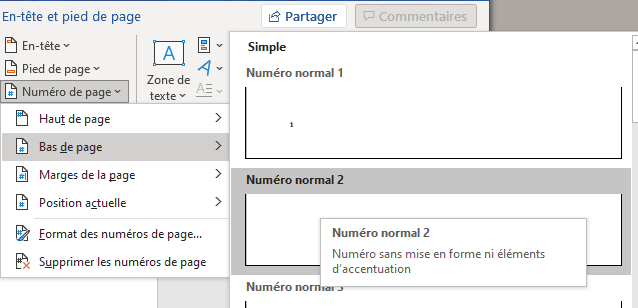
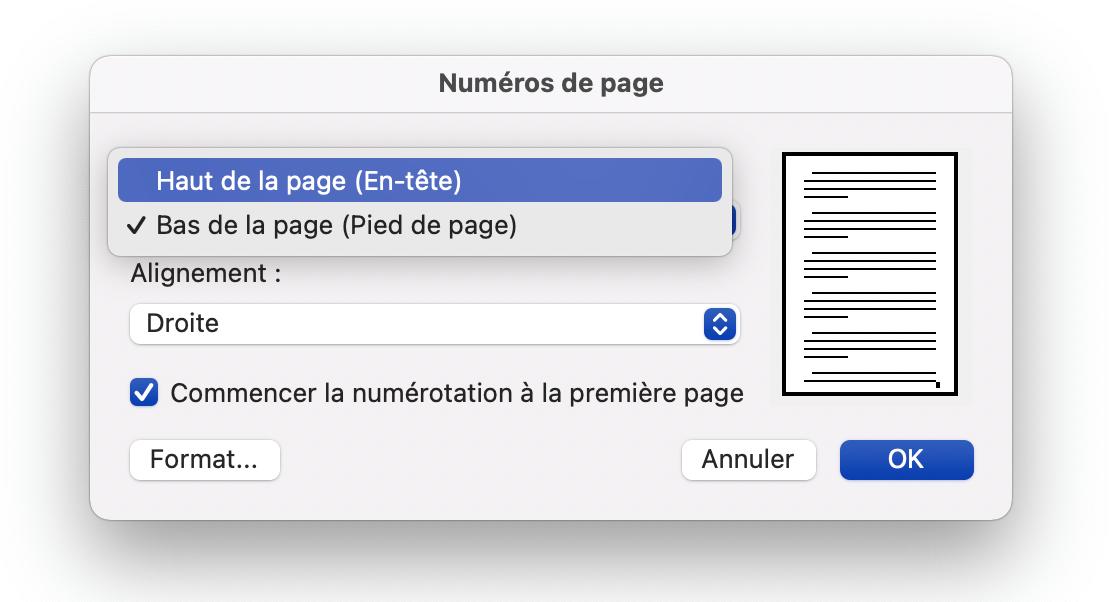
- Format Page Numbers: Find the "Page Number" ("Numéro de page") option and choose "Format Page Numbers..." ("Format des numéros de page...").
- Start at 1: In the dialog box, under "Page Numbering" ("Numérotation des pages"), select "Start at" ("Débuter à") and enter "1". Click "OK."
And there you have it! You've successfully navigated the tricky terrain of Word page numbering. Your cover page is now beautifully bare, and your document starts numbering correctly from page 2. Feel that sense of accomplishment? You deserve it.
Now, go forth and conquer those deadlines! And maybe grab another coffee – you've earned it.
One last thing: If you're still having trouble, YouTube is your friend. Seriously, there are tons of helpful tutorials out there. Good luck!