
Salut, mes chéris! Tired of your Word documents looking like they were thrown together at the last minute? Let's talk about something that can instantly elevate your work from "meh" to "magnifique": la page de garde. Think of it as the perfectly chosen accessory that pulls your whole outfit – or in this case, your entire document – together.
Pourquoi une Page de Garde? (Why a Cover Page?)
Seriously, why bother? Well, a great cover page isn't just about aesthetics, although that’s definitely a plus. It's about making a statement. It's the first impression, the "bonjour" that sets the tone for what's to come. Imagine showing up to a date in sweatpants vs. that little black dress – similar content underneath, but a vastly different impact, n'est-ce pas?
Here's the breakdown of the benefits:
- Professionalism: It screams "I put effort into this!". Think of it like a meticulously crafted business card.
- Organization: It clearly identifies the document's title, author, date, and any other essential info right up front. Less guessing, more knowing!
- Visual Appeal: A well-designed cover page can be visually captivating, drawing the reader in and making them want to explore further. It’s like the opening credits of a film – it sets the scene.
Mettre une Page de Garde dans Word: C'est Facile! (Adding a Cover Page in Word: It's Easy!)
Okay, enough chit-chat. Let's get practical. Adding a cover page in Word is easier than ordering a pain au chocolat. Here's how:
- Open Word: Duh! But you gotta start somewhere.
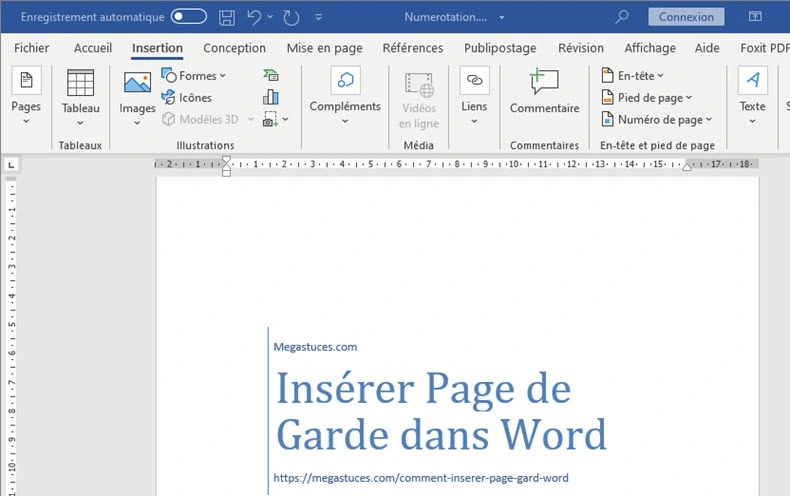
- "Insertion" Tab: Head over to the "Insertion" (Insert) tab on the ribbon.
- "Pages" Group: In the "Pages" (Pages) group, you'll find the magical "Page de Garde" (Cover Page) button. Click it!
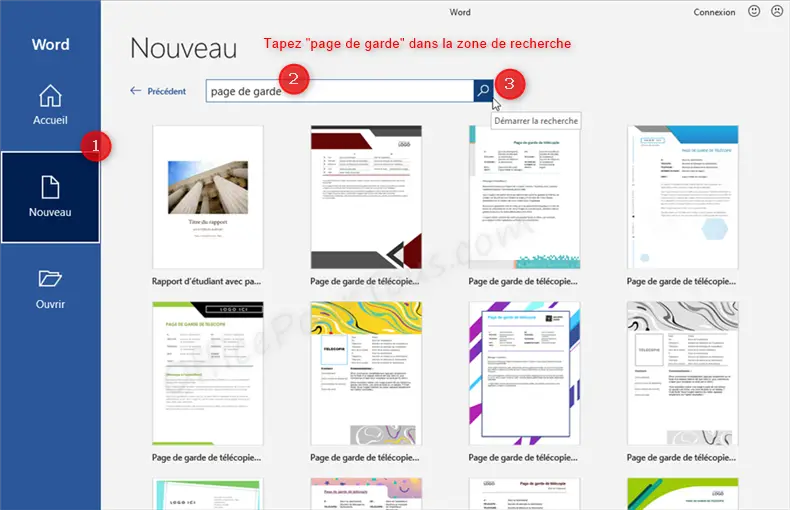
- Choose Your Style: A dropdown menu will appear with a plethora of pre-designed cover page options. Scroll through and pick one that resonates with your document's theme. Think minimalist chic or bold and modern. Whatever suits your fancy!
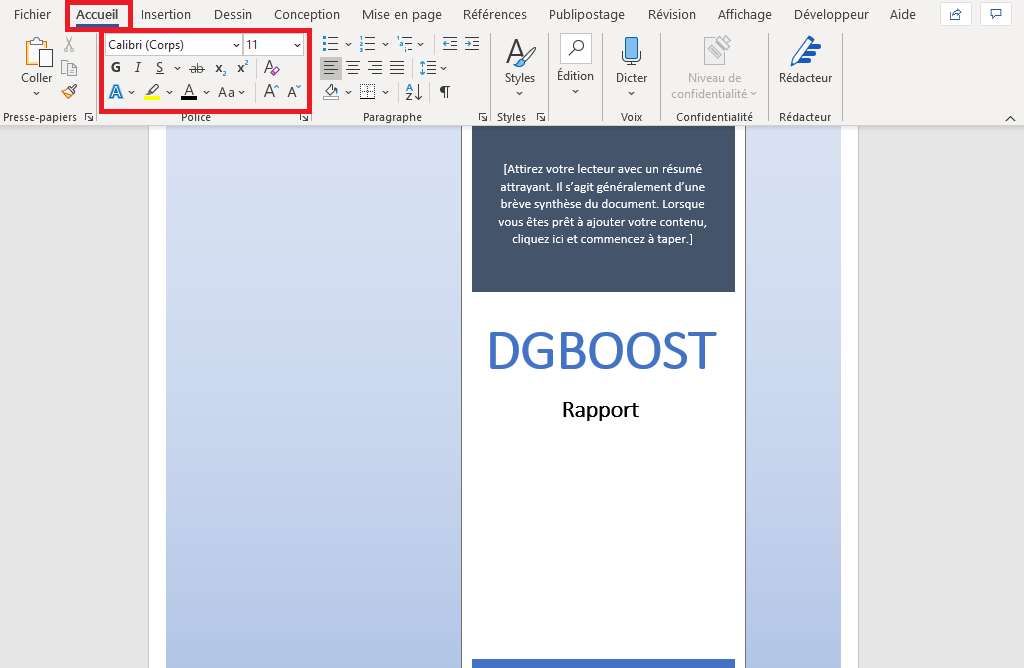
- Customize: Now for the fun part! Click on the placeholders within the chosen template (title, author, date, etc.) and replace them with your own information. Feel free to adjust the font sizes, colors, and even add your own images to truly personalize it.
Customisation: The Devil (and Angel) is in the Details
While the pre-designed templates are a great starting point, don't be afraid to inject your own personality. Here are some customization tips:

- Images: A relevant image can speak volumes. Use high-quality images that complement your document's topic. Think of it like selecting the perfect album art.
- Fonts: Choose fonts that are both legible and aesthetically pleasing. Avoid overly fancy or difficult-to-read fonts. Serif fonts (like Times New Roman) are often perceived as more formal, while sans-serif fonts (like Arial) are generally considered more modern.
- Colors: Use a consistent color palette that aligns with your brand or the overall tone of your document. Don't go overboard with too many colors – keep it simple and elegant. Think Coco Chanel’s famous advice: "Before you leave the house, look in the mirror and take one thing off."
- Layout: Experiment with different layouts to find one that is visually appealing and easy to read. Use white space effectively to avoid a cluttered look.
Beyond the Basics: Level Up Your Cover Page Game
Want to truly impress? Consider these advanced techniques:
- Create Your Own Template: If you're feeling adventurous, you can create your own cover page template from scratch. Use shapes, text boxes, and images to design a completely unique look.
- Use Shapes and Icons: Add visual interest by incorporating geometric shapes and relevant icons.
- Watermarks: A subtle watermark can add a touch of sophistication and help protect your document's copyright.
Important note: Always save your customized cover page as a template so you can easily reuse it for future documents. This will save you time and ensure consistency across all your work.
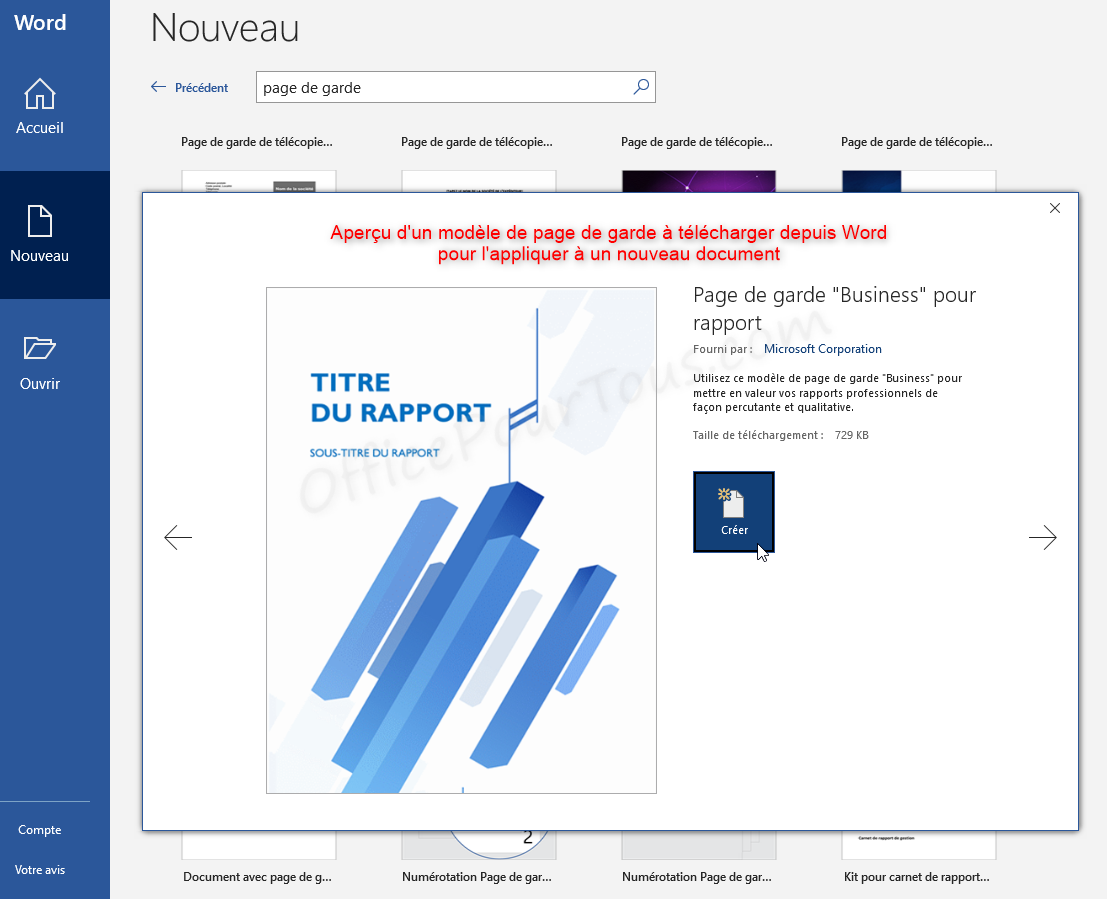
Alors voilà! You're now equipped to conquer the world of Word cover pages. Go forth and create documents that are not only informative but also visually stunning!
Réflexion (Reflection): In a world saturated with information, presentation matters. A well-crafted cover page is a small detail that can make a big difference in how your work is perceived. It reminds us that taking the time to pay attention to the small things can elevate the ordinary into something truly special, whether it's a document, a meal, or simply the way we present ourselves to the world.












![Modèle Page De Garde Word Awesome Docx] Page De Garde Business Pour](https://i.pinimg.com/originals/61/a0/99/61a09932a82cc02e171651c658f1e750.png)

