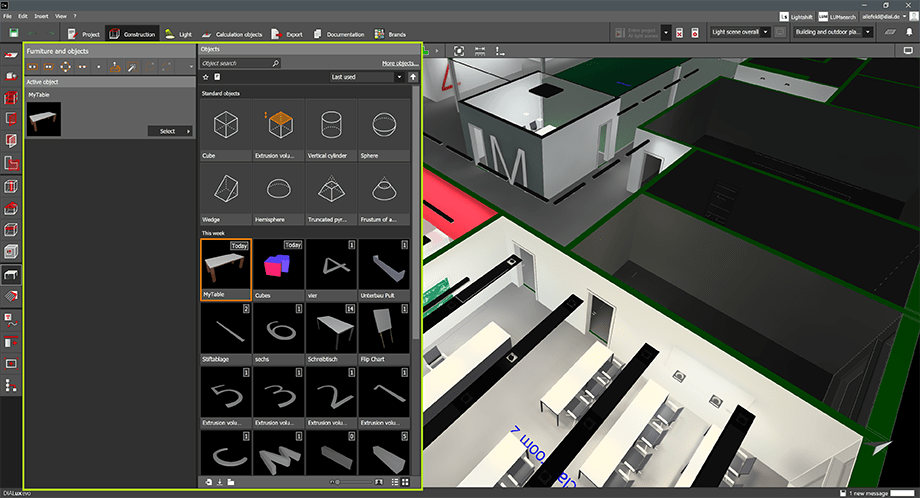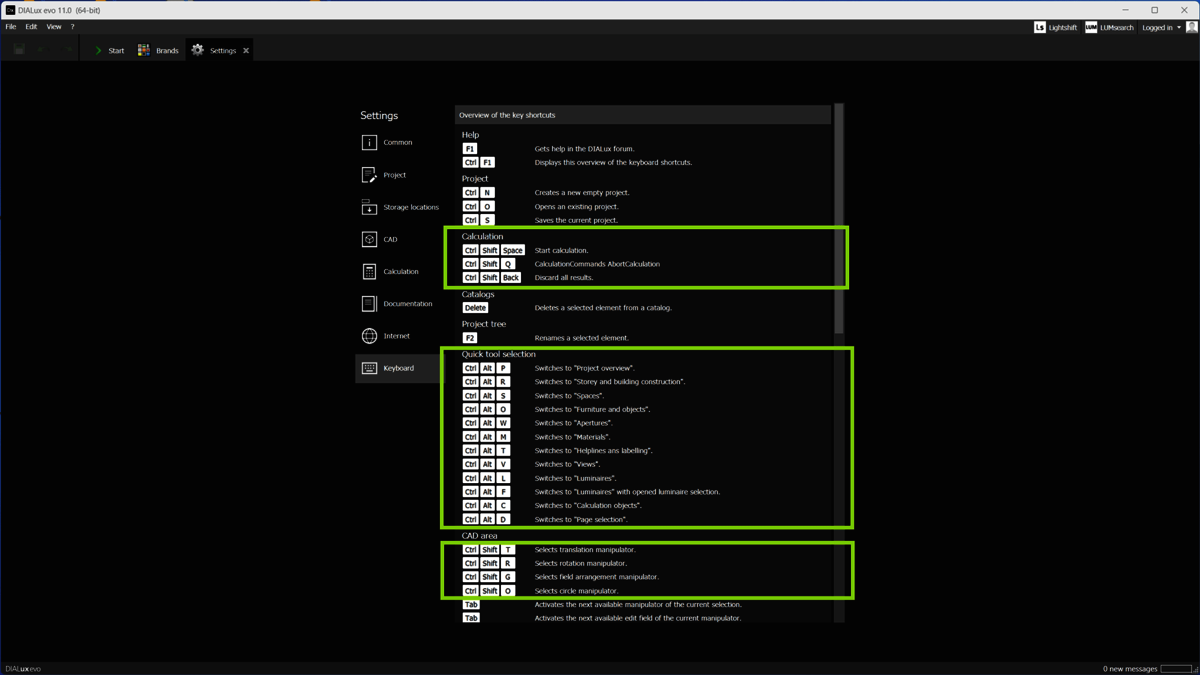
Okay, picture this: me, staring intensely at my screen at 3 AM, powered by questionable coffee and sheer willpower. I'm trying to finish a Dialux Evo project, and all I want is a simple, elegant cover page to make it look, you know, professional. Cue the sound of crickets. Because adding a cover page in Dialux Evo? Feels like trying to herd cats in a hurricane. Been there, felt that?
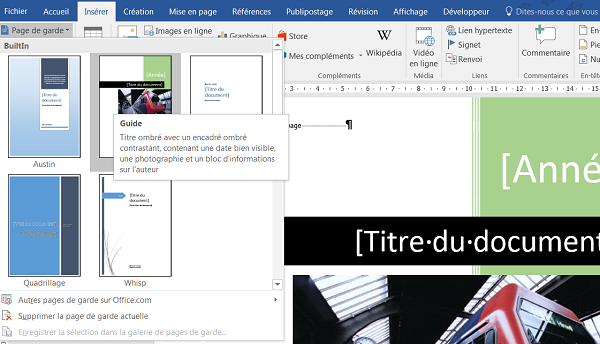
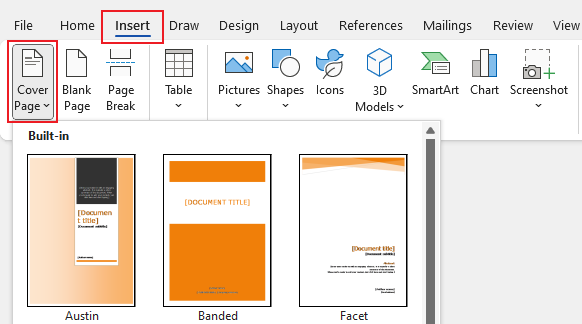
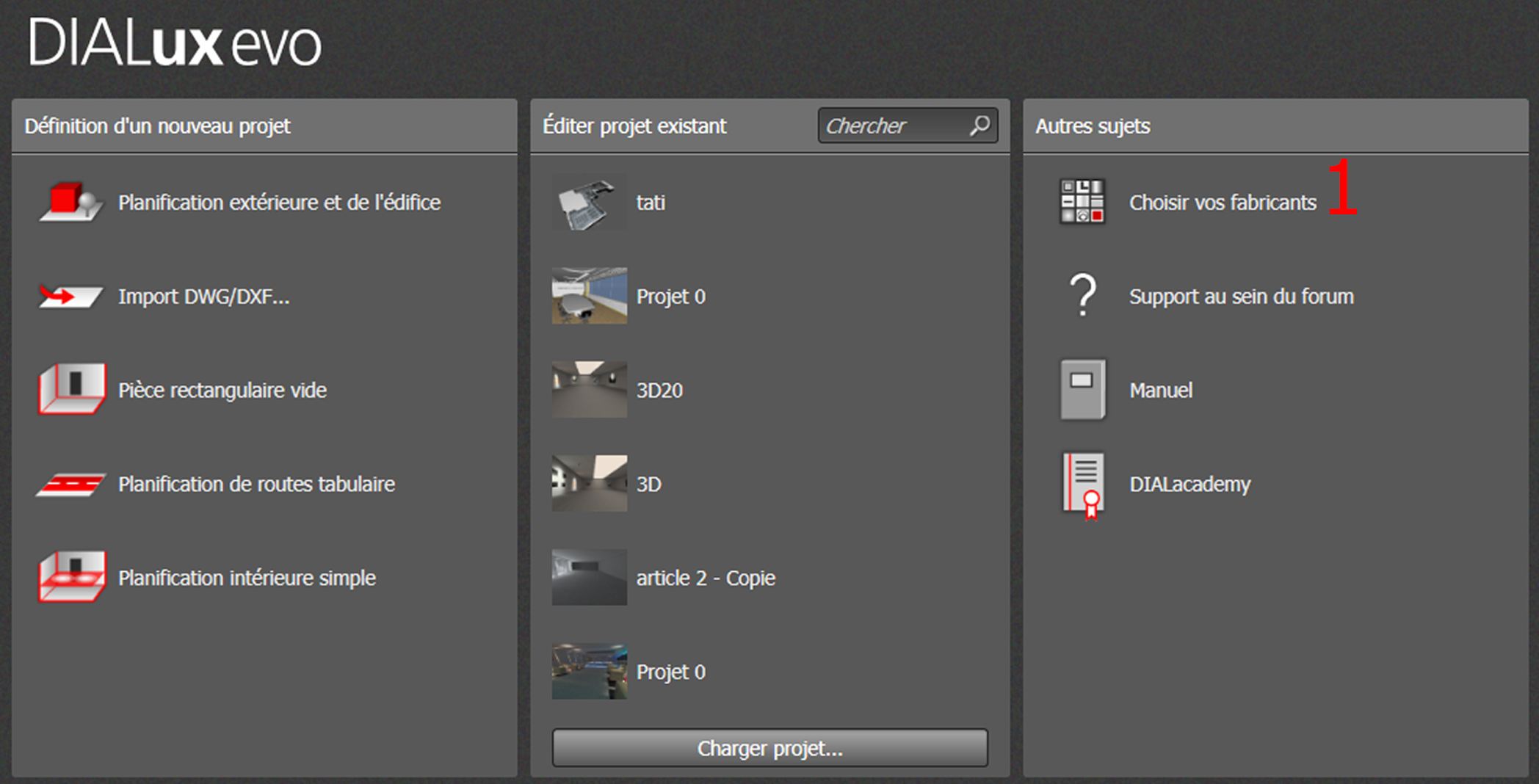
So, yeah, the elephant in the room (or rather, the lack of an elephant, as in, a dedicated 'add cover page' button) is that Dialux Evo doesn't have a built-in feature to directly create a cover page like you might expect in Word or InDesign. Trust me, I've clicked all the buttons. Twice. Don't waste your time.
Why the Headache? (aka, Dialux Evo's Quirks)
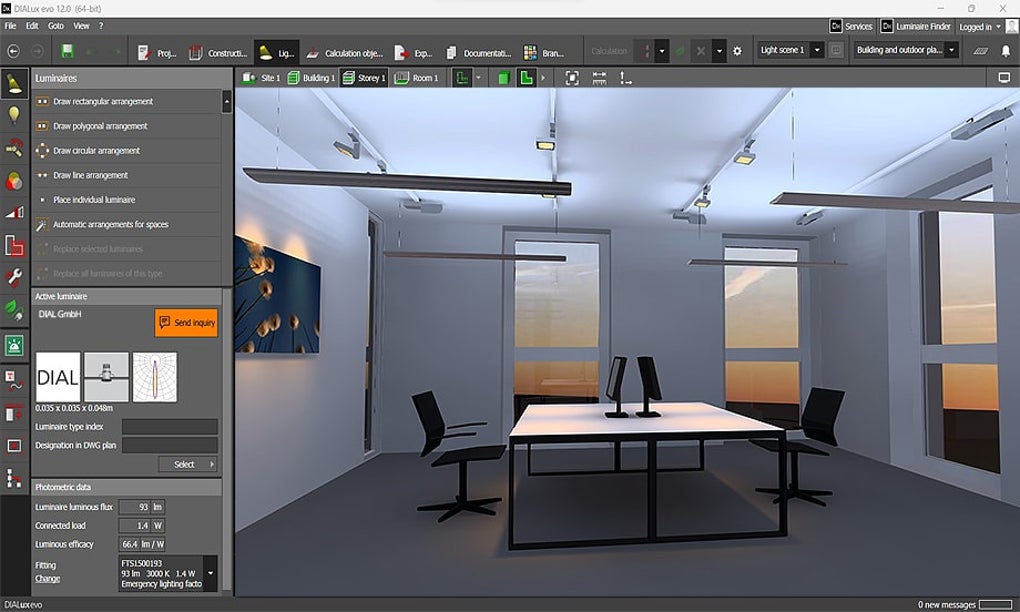
Honestly, I think it boils down to the program's core focus: lighting calculations. Dialux Evo is fantastic for simulating light distribution, calculating illuminance, and generating detailed reports filled with technical data. Fancy page layouts? Not so much.
Think of it like this: it's a powerful engine, not a design studio. It excels at the heavy lifting, but the presentation needs some... assistance.
The "Creative" Workarounds (Because We're Engineers, Dammit!)
So, how do we achieve that elusive cover page? Here's a breakdown of the tried-and-tested (and occasionally slightly-janky) methods:
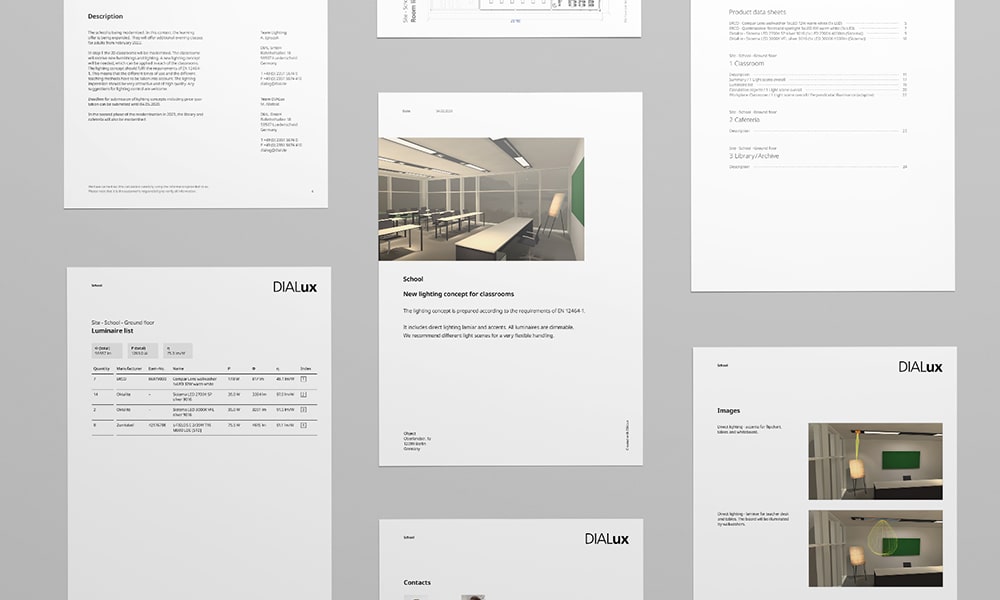
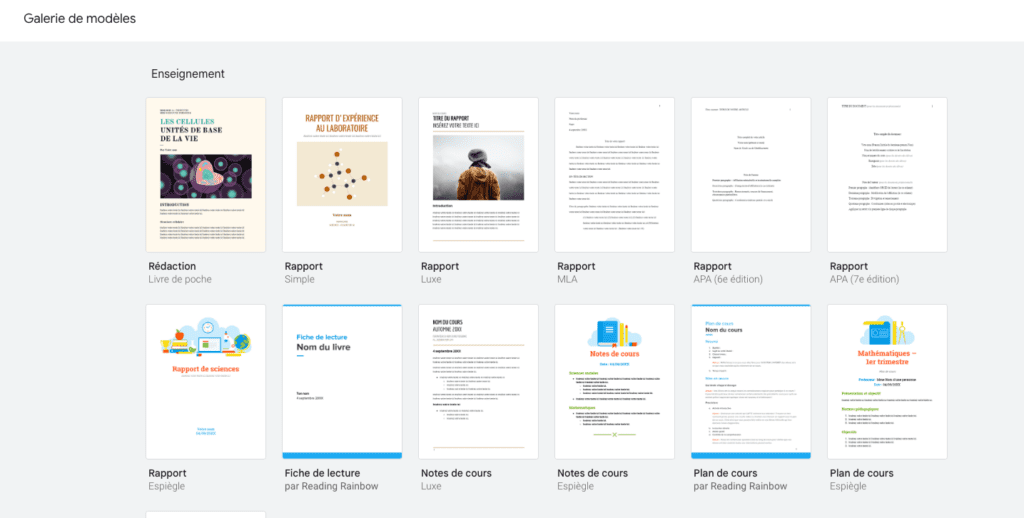
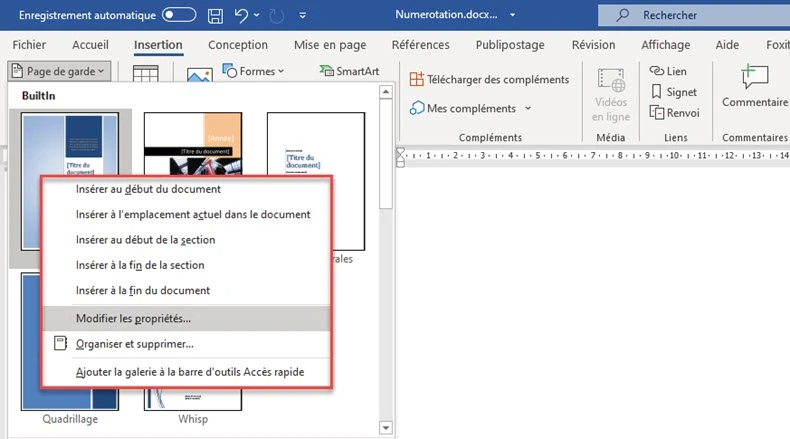
- The External Editor Approach: This is generally the recommended path. Create your cover page in a separate program like Word, PowerPoint, or even a dedicated graphics editor (Photoshop, GIMP, etc.). Export it as a PDF, and then merge it with the Dialux Evo report using a PDF editing tool (Adobe Acrobat, PDFsam Basic – which is free!).
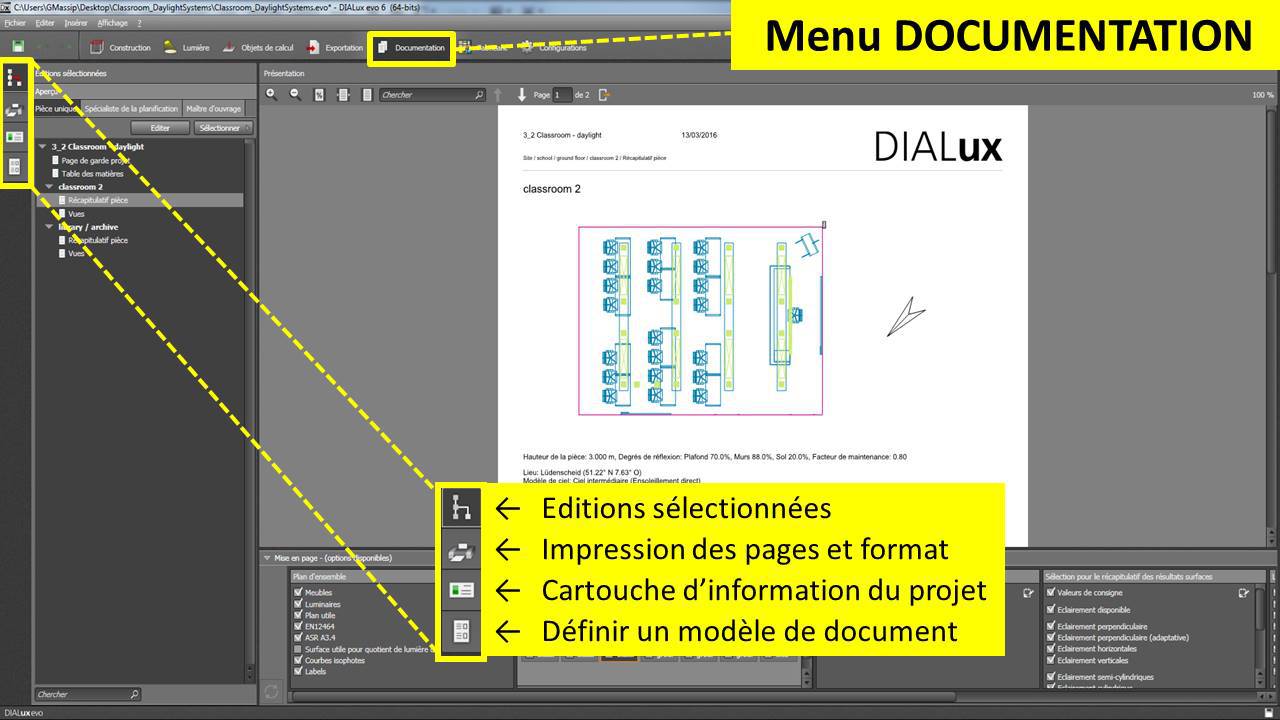
- The "Report Template" Hack: Dialux Evo allows you to customize report templates. While you can't easily insert a cover page, you can modify the header/footer to include your company logo, project name, and maybe a simplified title. It's not a full cover page, but it's a step up from nothing.
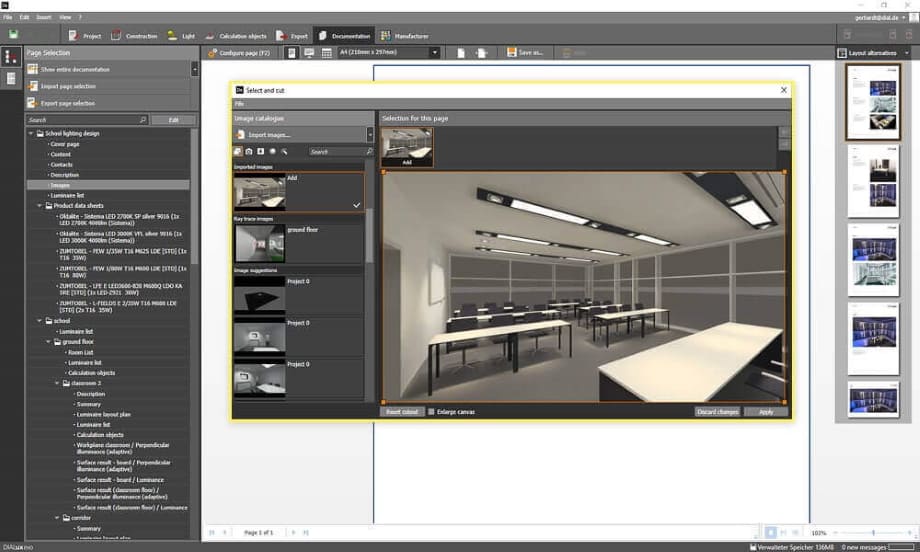
- The "Image Insertion" Trick (Use with Caution!): Within Dialux Evo, you can insert images into your project documentation. You could theoretically create a "cover page" image and insert it somewhere near the beginning of the report. However, this can be clunky, and you have limited control over placement and formatting. Proceed with caution. You've been warned.
Pro Tip: Make sure the page size matches your Dialux Evo report! You don't want a tiny, shrunken cover page looking lost on a massive A3 report.
My Personal Favorite (aka, the Least Painful Option)
I usually opt for the external editor method. I create a clean, professional cover page in PowerPoint (easy to use, decent design options) and then merge it with the final Dialux Evo report using PDFsam Basic. It's relatively quick and provides the best visual result, in my opinion.
The key takeaway? Don't beat your head against the wall trying to force Dialux Evo to do something it wasn't designed for. Embrace the workarounds, choose the method that suits your workflow, and remember to save your coffee for celebrating the actual lighting calculations, not agonizing over cover pages. Good luck!