Okay, so picture this: I'm frantically trying to submit a report, five minutes before the deadline. Everything's perfect, the analysis is brilliant (if I do say so myself!), the formatting is flawless... except. The. Cover. Page. Blank. White. Staring back at me like the judgment of a thousand professors. Sound familiar? Yeah, we've all been there. That's when I realized, "Google Drive, you sly dog, you hide your cover page magic well!"
But fear not, fellow procrastinators and aesthetically-inclined individuals! Creating a decent, dare I say, stunning cover page in Google Drive isn't rocket science. It's more like... well, maybe advanced origami. But way less fiddly.
So, Where's the "Cover Page" Button? (Spoiler: There Isn't One)
Let's address the elephant in the digital room: Google Drive doesn't have a dedicated "Insert Cover Page" button. I know, I know, the betrayal! But that's okay, we're resourceful. We're adaptable. We're... going to use workarounds. And honestly, they're pretty simple.
Think of it this way: Google Drive is all about freedom! It's saying, "Express yourself! Design your own destiny! (And your own cover page.)"

Method 1: The "Dedicated First Page" Approach
This is your basic, bread-and-butter method. Straightforward, reliable, and gets the job done.
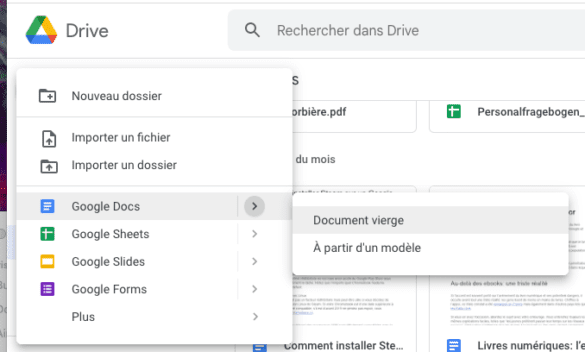
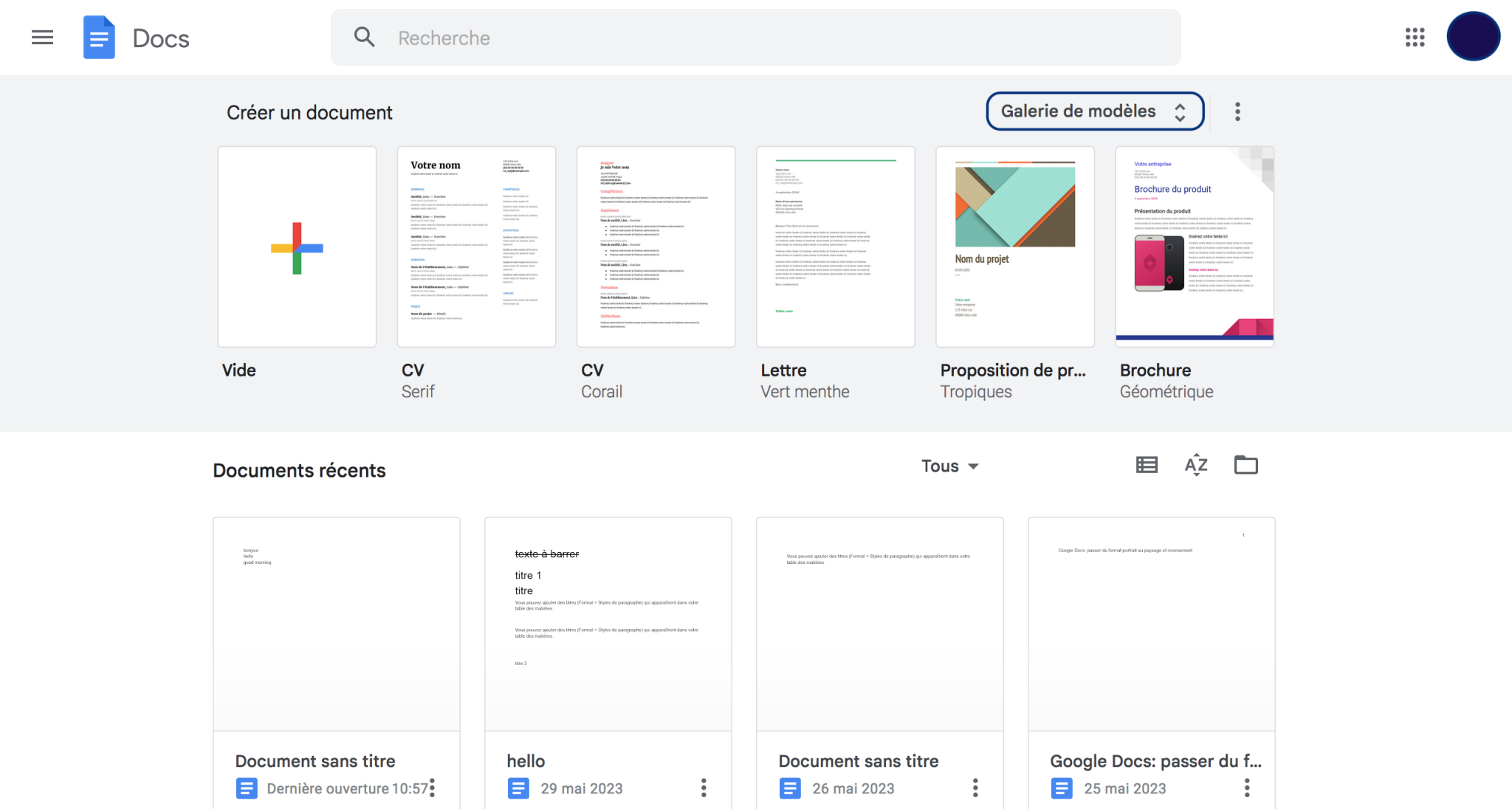
- Create a new Google Doc. (Obviously!)
- Design your cover page on the first page. This is where the fun begins! Use Insert -> Drawing -> New to unleash your inner artist. Or, you know, just insert a nice image. Pro tip: Keep it clean and professional. Unless you're submitting a report on interpretive dance. Then, by all means, go wild.
- Add all the important info. Title, your name, date, course, professor's name... the usual suspects.
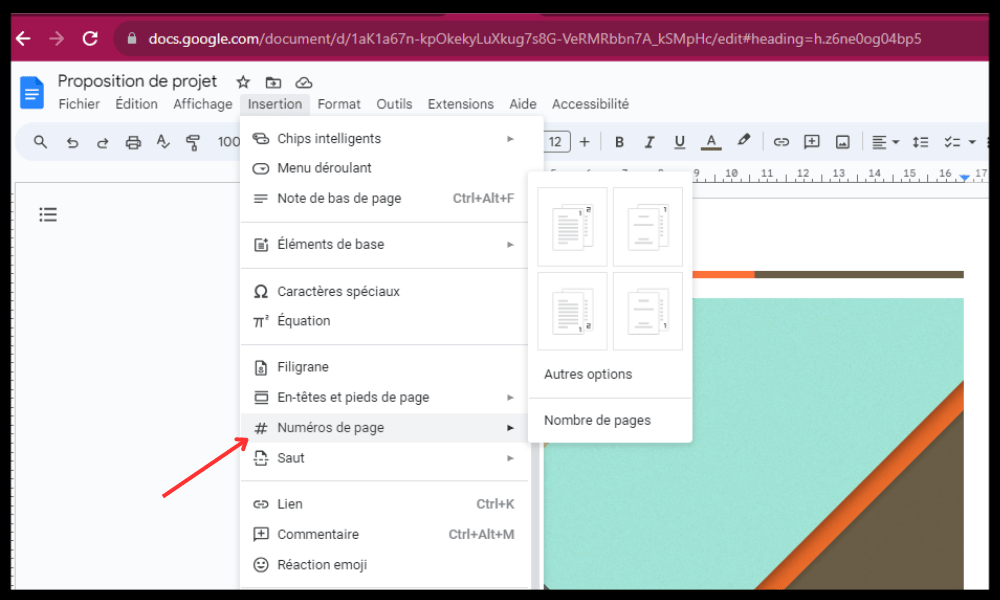
- Insert a Page Break (Insert -> Break -> Page Break) to neatly separate your cover page from the rest of your document.
- Start writing! Boom. Cover page handled.
Method 2: The "Image Insertion Extravaganza"
Feeling a bit more adventurous? This method involves creating a cover page image elsewhere (Canva, Photoshop, even PowerPoint!) and then importing it into your Google Doc.
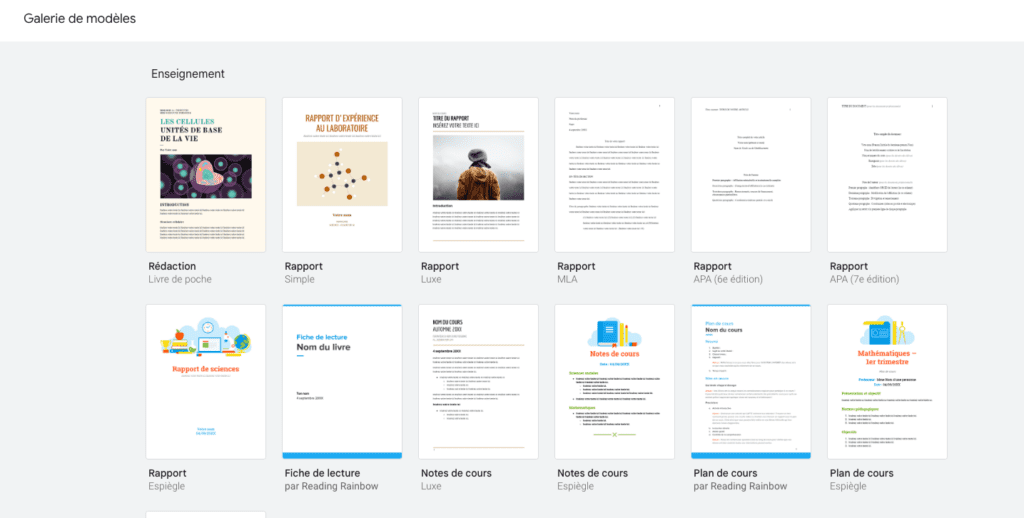
- Design your cover page. Use your favorite graphic design tool. Canva is particularly user-friendly.
- Download your design as an image (JPEG or PNG). Make sure it's high resolution! Nobody wants a pixelated cover page.
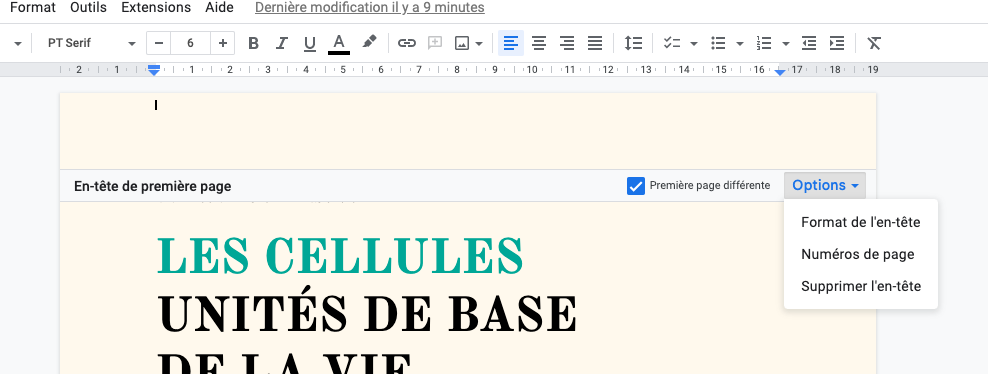
- In your Google Doc, go to the first page.
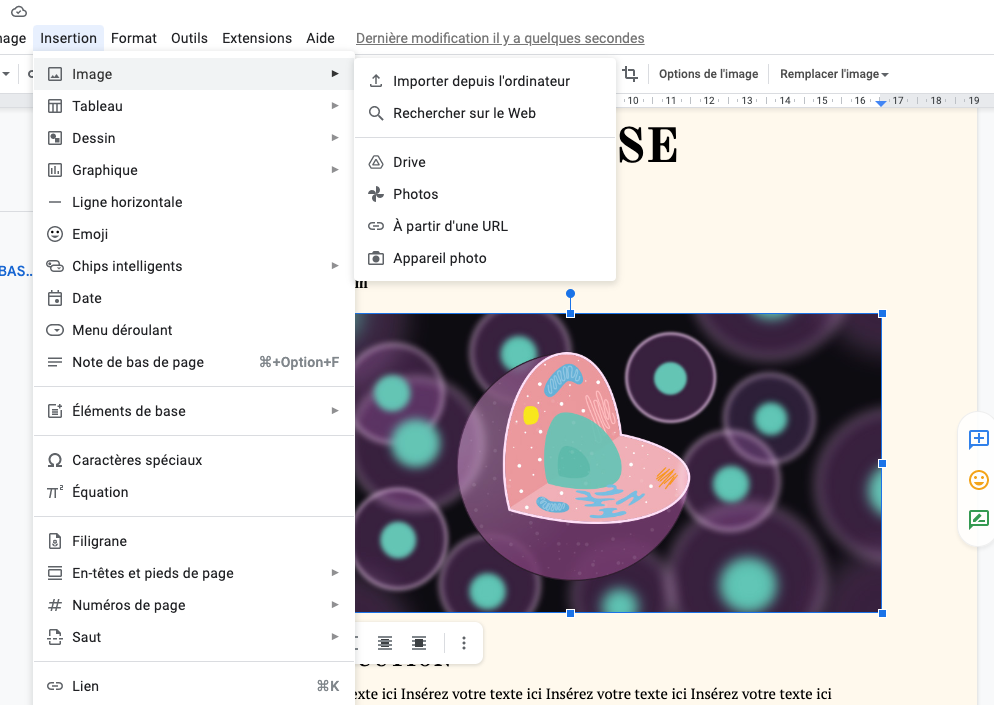
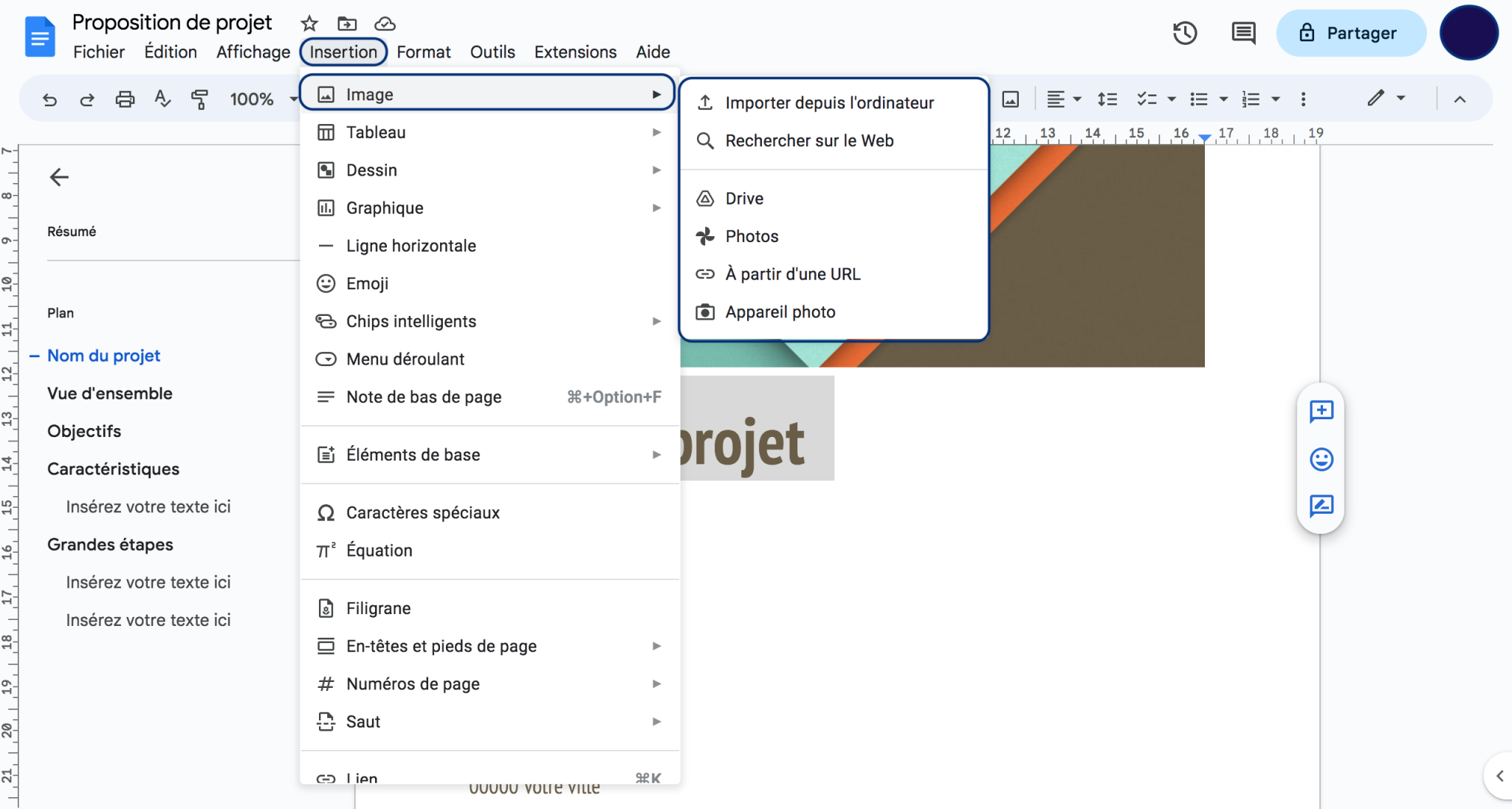
- Insert -> Image -> Upload from computer. Select your beautiful cover page image.
- Adjust the image size and positioning as needed. You might need to play around with the wrapping options to get it just right. (Side note: "In line" wrapping can be your best friend or your worst enemy. Choose wisely!)
- Insert a Page Break after the image.
Bonus Tip: For a consistent look, create a template! Save a Google Doc with your cover page design as a template. Then, whenever you need a new document, just copy the template and edit the details. Saves you time and effort in the long run. You're welcome.
So there you have it! Creating a cover page in Google Drive might not be as intuitive as clicking a button, but with a little creativity and these simple methods, you can make your documents shine. Now go forth and conquer those deadlines... with style!








![Découvrez comment créer des pages de garde dans Google Docs [Easy Steps]](https://cloudo3.com/resources3/images10/image-255-1008140655231.png)


