Okay, picture this: it's 3 AM, deadline looming, caffeine levels at a concerning high. I'm staring at a Word document, a thesis that's basically my life savings in intellectual property. Everything's polished... except. The. Cover. It's just... blah. Generic. And suddenly, like a beacon of desperate inspiration, I thought, "What if the cover page... was a different color?" Sounds simple, right? Welcome to my rabbit hole.
So, why am I rambling about cover page colors? Well, because adding a splash of personality (or, you know, a blatant cry for attention) to your cover page is totally doable in Word. And it doesn't have to be a nightmare. Let’s explore how to avoid turning a simple formatting tweak into a full-blown existential crisis.
Pourquoi une Page de Garde Colorée? (Why a Colorful Cover Page?)
Let's be honest: sometimes, beige just doesn't cut it. A colored cover page can:
- Make a Statement: First impressions matter, people!
- Match Your Brand: Corporate documents? Keep it consistent!
- Just Be Fun: Why not? Life's too short for monochrome.
Of course, know your audience! Bright neon pink might not be the best choice for a formal legal document. Unless...? (Just kidding. Probably.)
Comment Changer la Couleur de Votre Page de Garde dans Word
Alright, here's the lowdown. There are a couple of ways to tackle this, depending on how your cover page is structured. Spoiler alert: it's not always intuitive.
Option 1: La Méthode Facile (If You're Lucky)
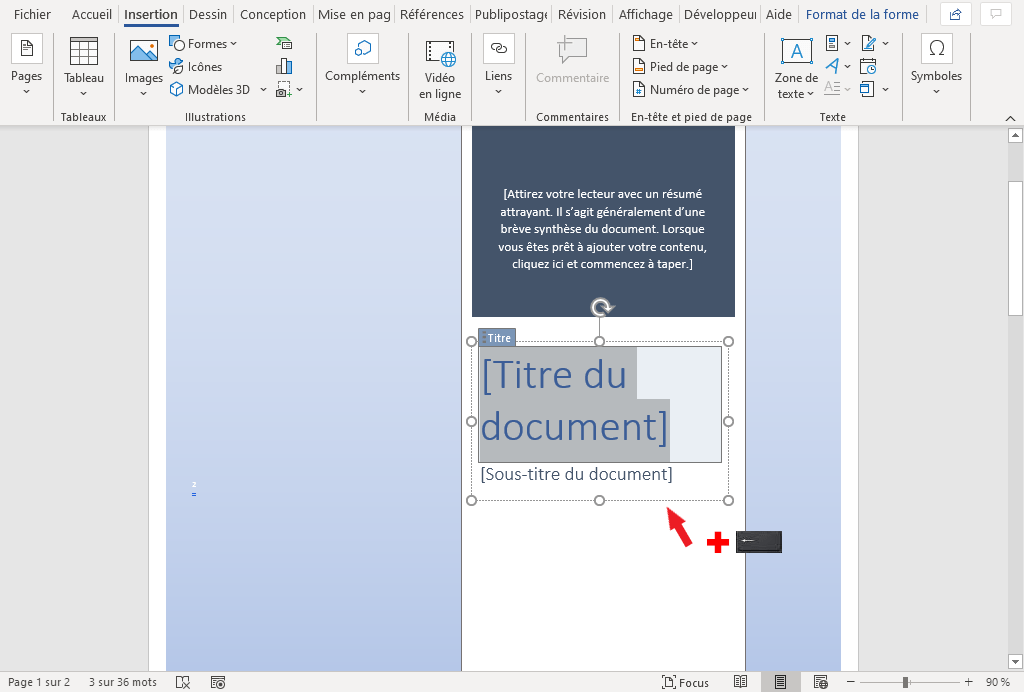
If your cover page is primarily made up of text boxes or shapes, you might be able to simply:
- Click on the shape or text box you want to color.
- Go to the "Format" tab that appears (usually at the top).
- Look for "Shape Fill" (Remplissage de forme) or something similar.
- Choose your color! Voilà!
Easy peasy, right? ...Yeah, about 20% of the time.

Option 2: L'Insertion d'une Forme (The Shape-Shifting Technique)
This is my go-to method when Word refuses to cooperate. It involves creating a big rectangle and using it as a background.
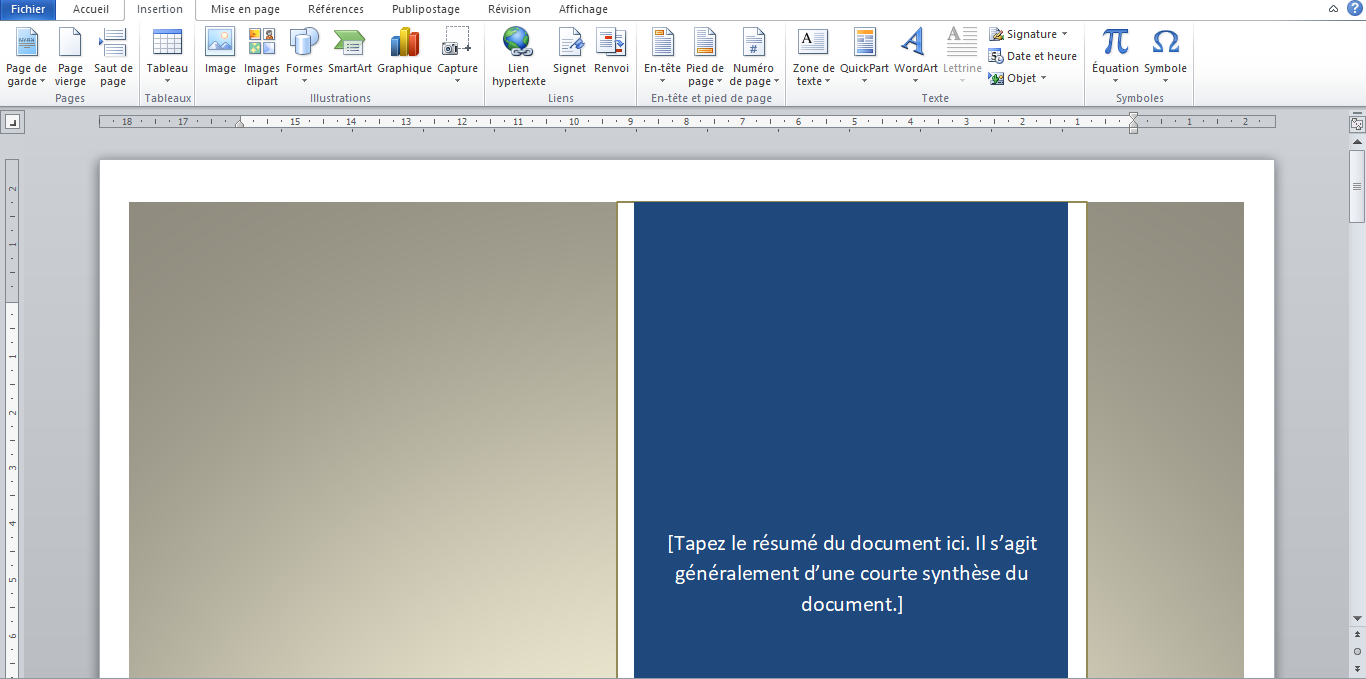
- Go to "Insert" (Insertion) > "Shapes" (Formes) and choose a rectangle.
- Draw the rectangle to cover the entire page. Don't worry if it's on top of your text – we'll fix that!
- Right-click on the rectangle and choose "Format Shape" (Format de la forme).
- Under "Fill" (Remplissage), choose your color.
- Under "Line" (Trait), choose "No Line" (Aucun trait) to get rid of the border.
- Now, right-click on the rectangle again and choose "Send to Back" (Envoyer à l'arrière-plan). Magic! Your text should reappear.
Pro-Tip: You might need to adjust the position of some text elements to make them look right after adding the colored background. Play around with it!
Option 3: Le Fond de Page (The Page Background Approach)
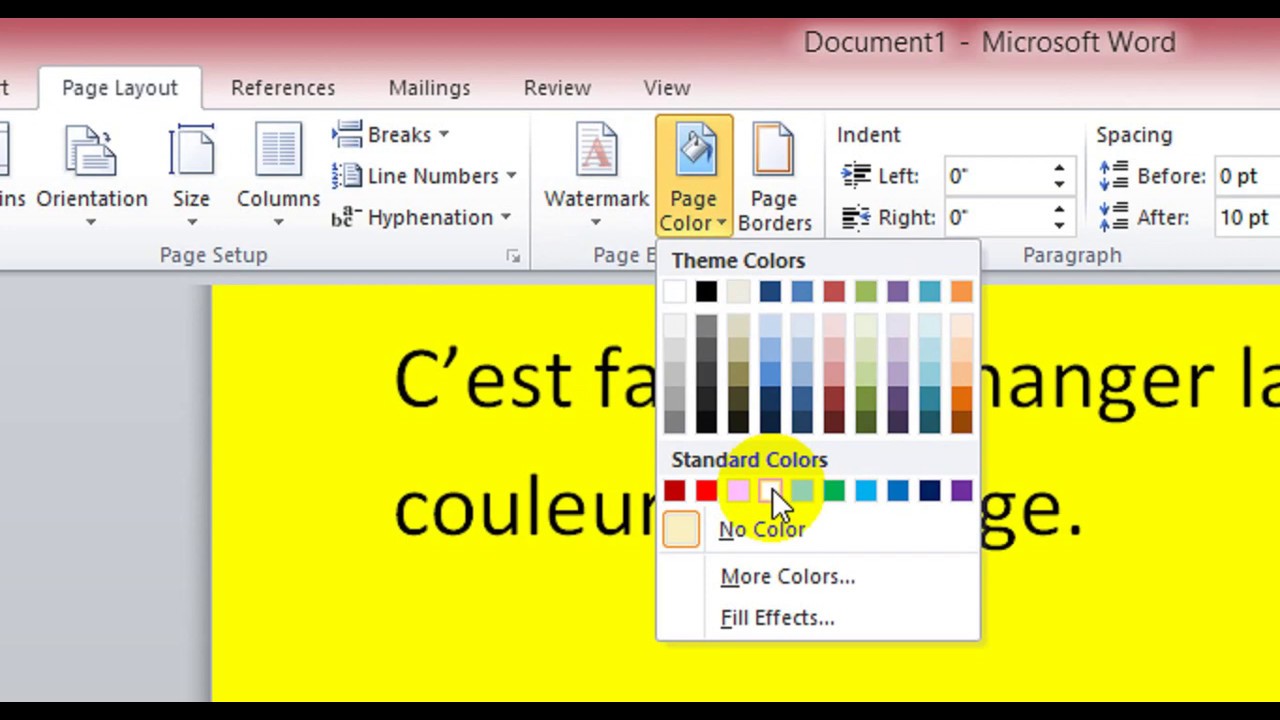
Word also has a "Page Color" (Couleur de Page) option under the "Design" (Conception) tab (or "Page Layout" in older versions). The downside? It colors the entire document, not just the cover page. Unless you want your entire thesis to be a vibrant shade of cerulean (again, know your audience!), this isn't usually the best solution.
Conclusion: Couleur, Créativité, et un Peu de Patience
Adding color to your cover page is a small change that can have a big impact. Just remember to be mindful of your document's overall aesthetic and the expectations of your audience. And hey, if you mess something up, Ctrl+Z is your best friend! Now go forth and create! And maybe, just maybe, avoid working on your thesis at 3 AM. (Easier said than done, I know.)




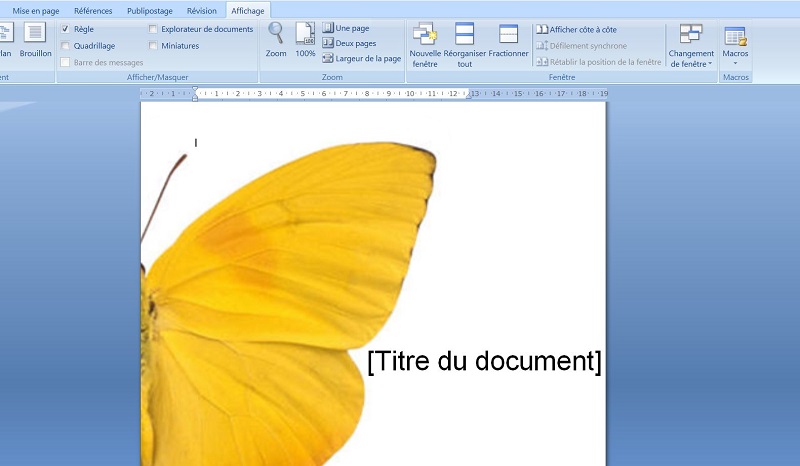


![Modèle Page De Garde Word Awesome Docx] Page De Garde Business Pour](https://i.pinimg.com/originals/61/a0/99/61a09932a82cc02e171651c658f1e750.png)


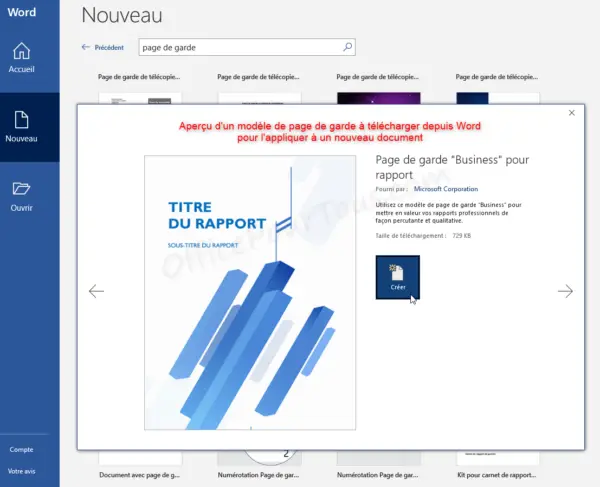
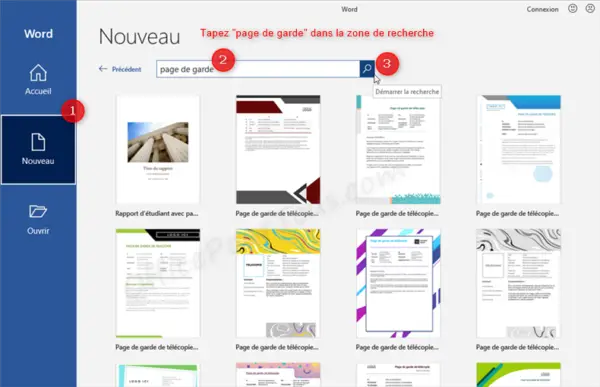
![[Docx] Modele page de garde rapport de stage word ~ StagePFE](https://4.bp.blogspot.com/-qsFTsOmjK3g/VF_cZtdd15I/AAAAAAAACJ4/czP2AEXuh18/w1200-h630-p-k-no-nu/modele+page+de+garde+gratuit+word.PNG)