Okay, so picture this: I'm burning the midnight oil, fueled by questionable instant coffee, trying to finish a report due tomorrow. Everything's going swimmingly... until I realize, with mounting horror, that my entire document is stubbornly stuck in the Times New Roman abyss. Times New Roman! The font of student essays and bureaucratic memos! A font so default, it’s practically invisible. (Seriously, does anyone actually like Times New Roman?) That's when I knew – I needed to wage war against the LibreOffice default font, and win. And guess what? You can too!
So, how do we escape the tyranny of the default and embrace a font that actually reflects our personality (or at least our preference for something... less Times New Roman)? It's surprisingly straightforward. Let's dive in.
Why Bother Changing the Default Font?
Good question! Here's why fiddling with the default font settings in LibreOffice is a total game changer:
- Consistency is key: Stop manually changing the font every. single. time. you open a new document. Your sanity will thank you.
- Efficiency boost: Less formatting, more writing! Think of all the time you'll save. You could finally learn to knit! (Okay, maybe not, but you get the idea.)
- Personalized touch: Express yourself! Choose a font that speaks to your soul (or at least doesn't bore it to tears).
The Secret Sauce: Changing the Default Template
Ready for the magic trick? The key is understanding that LibreOffice uses templates to create new documents. We're going to modify the default template to use our preferred font. Here's how:
- Open a new document: Just a blank canvas, ready for our font-based masterpiece.
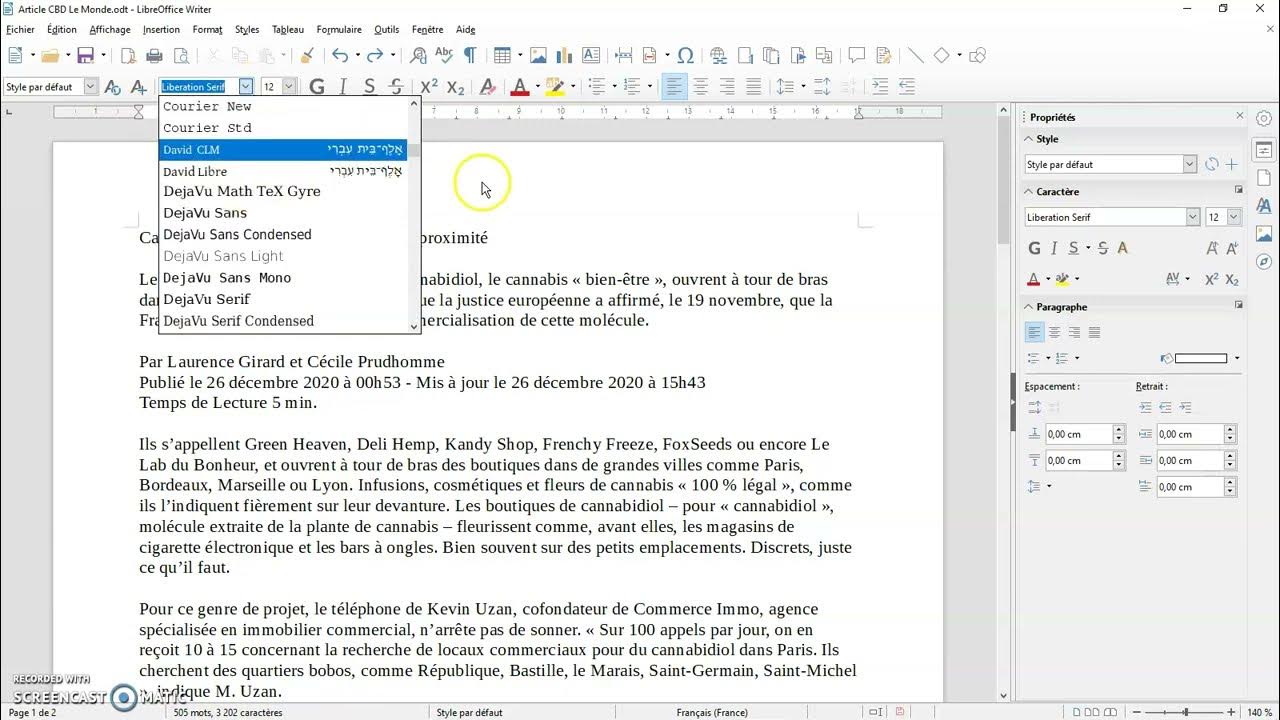
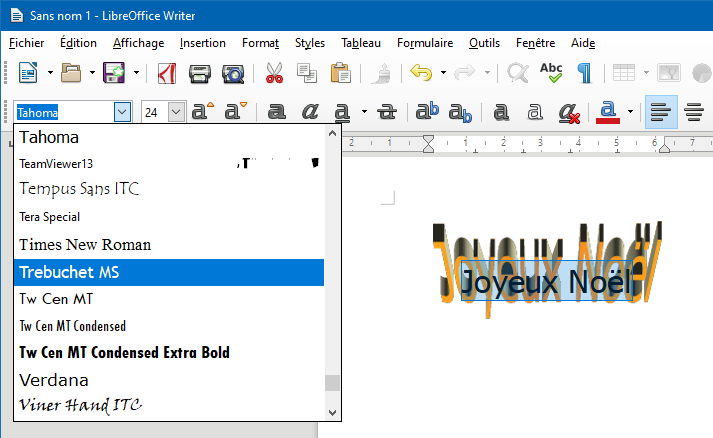
- Format that font: Change the font to your heart's content! Choose your size, style, color – go wild! (But maybe not too wild. Comic Sans is generally frowned upon, just sayin’.) You can change the default style, paragraph style, etc. Experiment!
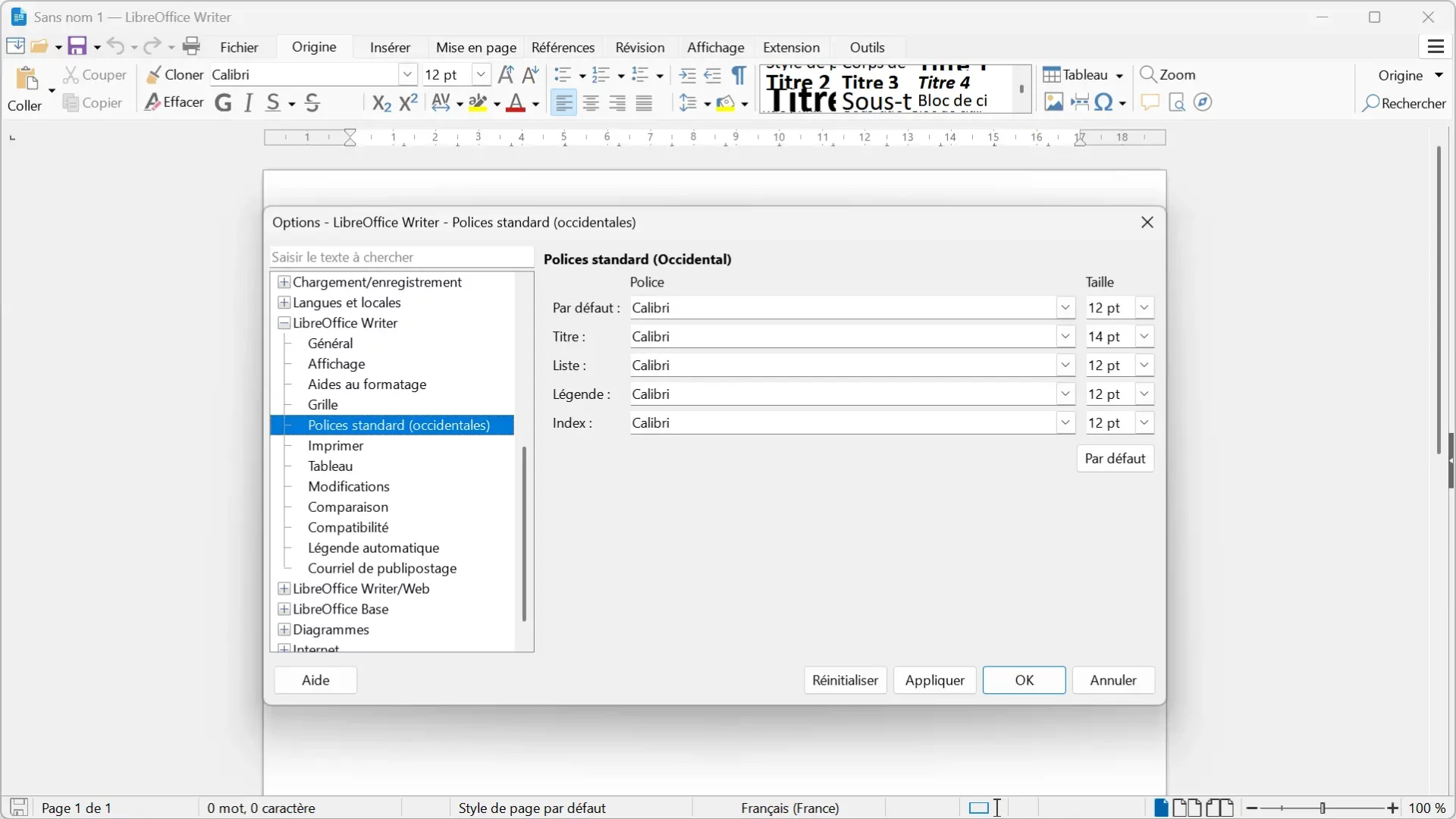
- Set as Default: Go to `Format` -> `Styles` -> `Manage Styles` (or press F11). Right-click on "Default Style" and choose `Modify`. In the "Font" tab, select your desired font.
- Save the Template: Now, the important part: Go to `File` -> `Templates` -> `Save as Template`.
- Name Your Template: Give your template a descriptive name (e.g., "MyAwesomeTemplate"). And under Category dropdown, select "My Templates".
- Set as Default Template: In the "Template Manager" (`File` -> `Templates` -> `Manage Templates`), go to "My Templates", right-click on your new template and select "Set as Default".
Et voilà! From now on, every new document you create will magically inherit your chosen font. You are now a LibreOffice font master!

Troubleshooting (Because Life Happens)
If things aren't working as expected, don't panic! Here are a few common pitfalls:
- Did you save the template correctly? Double-check that you followed all the steps above. Seriously, go back and reread. It's easy to miss a step.
- Is the template actually the default? Make sure you correctly set your new template as the default in the Template Manager. It sounds obvious, but trust me, it's easy to overlook.
- Specific paragraph styles overriding the default? Sometimes, existing paragraph styles can override the default font settings. You might need to tweak those as well.
Congratulations! You've successfully conquered the default font in LibreOffice. Now go forth and create beautifully formatted documents, free from the tyranny of Times New Roman! (Or Arial. Or whatever font you despise.)




![Fixer taille de la police sans tjrs la régler [Résolu] - LibreOffice](https://img-19.ccm2.net/-QzNfhfFgd9z890jhXTiqU6FVcs=/d208955d1654490da009722221c7ce21/ccm-ugc/libre_office_dans_police_.JPG)