Ok, imagine this: I'm frantically finishing a report at 3 AM. Coffee's cold, eyes are blurry, and LaTeX is throwing a tantrum. All I want is a simple title on my cover page, nicely centered and bold. But nooooo, LaTeX decides to play hide-and-seek with the most basic formatting. Anyone been there? (I see you nodding!)
Turns out, adding a title to your LaTeX cover page isn't rocket science, but it does involve a few tricks. Let's dive into it, shall we? Forget the complex templates for now; we're going bare-bones and building our own masterpiece.
The Basic Idea: The `\maketitle` Command
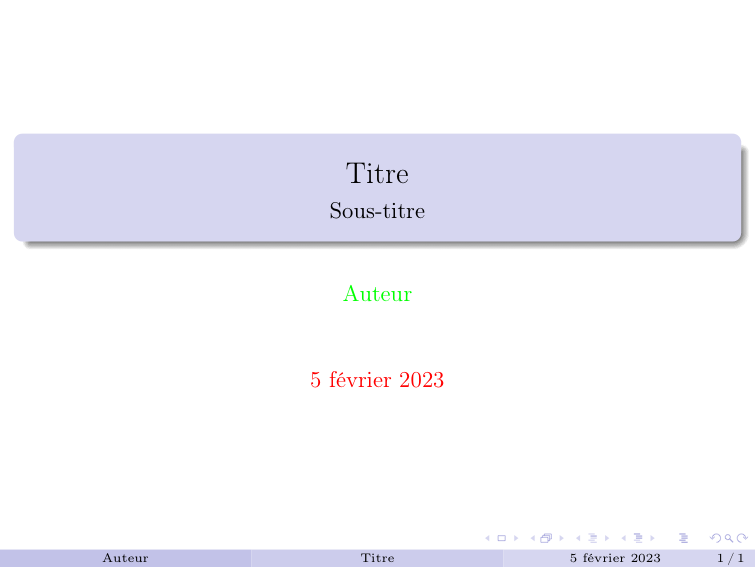
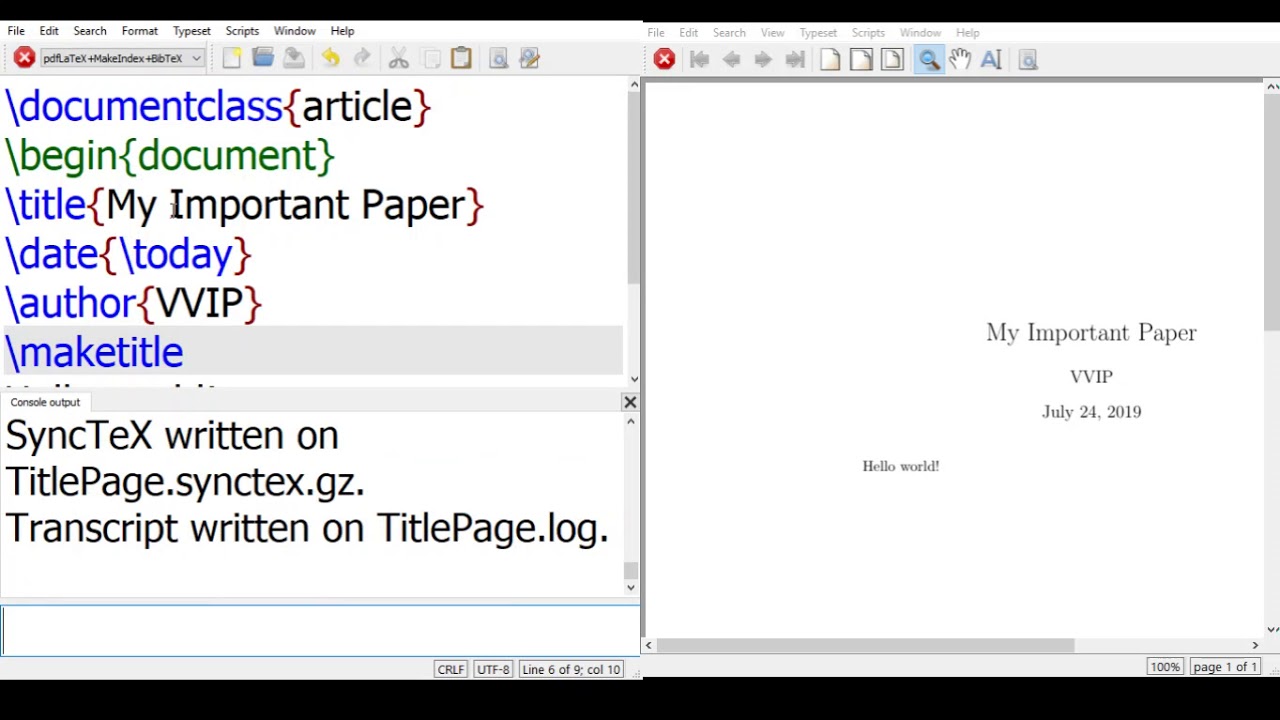
The most common (and often frustrating) way is using the `\maketitle` command. However, it only works correctly after you've defined `\title`, `\author`, and `\date` before the `\begin{document}` environment. Think of them as ingredients: you can't bake a cake without eggs, right?
Here's a quick example:
\title{My Awesome Report}
\author{Your Name}
\date{Today}

\begin{document}
\maketitle
Simple, right? Well, sometimes LaTeX decides it has its own opinions about "simple." If you're using a custom class or package, `\maketitle` might behave unexpectedly. Which leads us to...

The Custom Approach: DIY Cover Page
If `\maketitle` is giving you a headache, let's ditch it and create a cover page from scratch! This gives you complete control. Total power! (Insert evil laugh here). Seriously, it's liberating.
Here's the basic strategy:
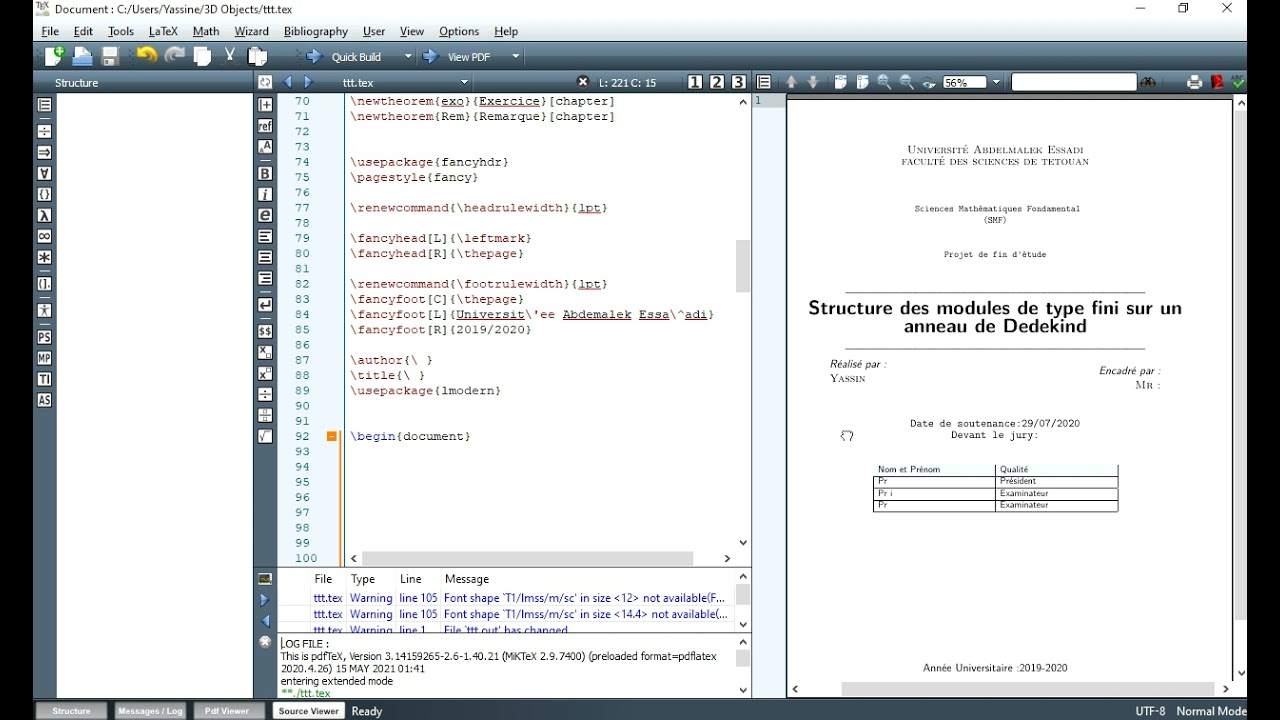
- Create a new page: Use `\newpage` or `\maketitle` (and then ignore the output if it's ugly).
- Center the content: Enclose your title, author, and other information within the `\begin{center}` and `\end{center}` environment.
- Format the text: Use commands like `\textbf` (bold), `\textit` (italic), and `\Large`, `\Huge` for size.
- Add spacing: Use `\vspace{...}` to adjust the vertical spacing between elements. This is crucial for a good-looking page.
Here's a possible code snippet:
\begin{document}
\begin{titlepage} % A dedicated environment for title pages - makes things cleaner!
\centering

\vspace{\fill} % Push everything to the vertical center

{\Huge \textbf{My Even More Awesome Report} \par} % The title

\vspace{1cm} % Some space below the title

{\Large Your Name \par} % The author

\vspace{0.2cm} % A bit more space

{\large \textit{University/Company Name} \par} % Affiliation - fancy!

\vspace{\fill} % Push the date to the bottom

{\large \today \par} % The date

\end{titlepage}
The `\begin{titlepage}` and `\end{titlepage}` environment are highly recommended. It ensures that everything within it starts on a new page and ignores things like header numbering and running heads. It's a lifesaver!
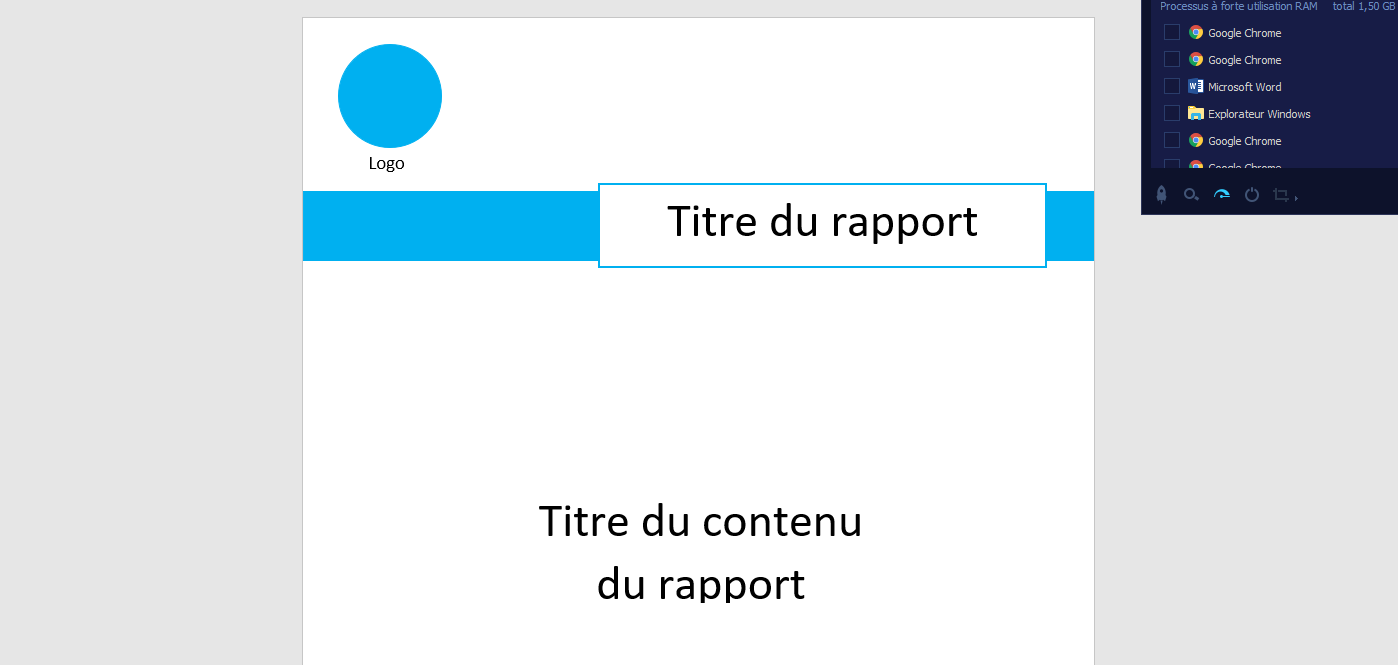
Spacing is Key! (Seriously)
Don't underestimate the power of `\vspace{...}`. A well-spaced cover page looks professional. A poorly spaced one? Well, let's just say it screams "I did this at 3 AM while fueled by instant coffee." Experiment with different values to find what looks best.
So, there you have it! From simple `\maketitle` to DIY cover page mastery. Go forth and create beautiful title pages! Now, if you excuse me, I need another coffee...