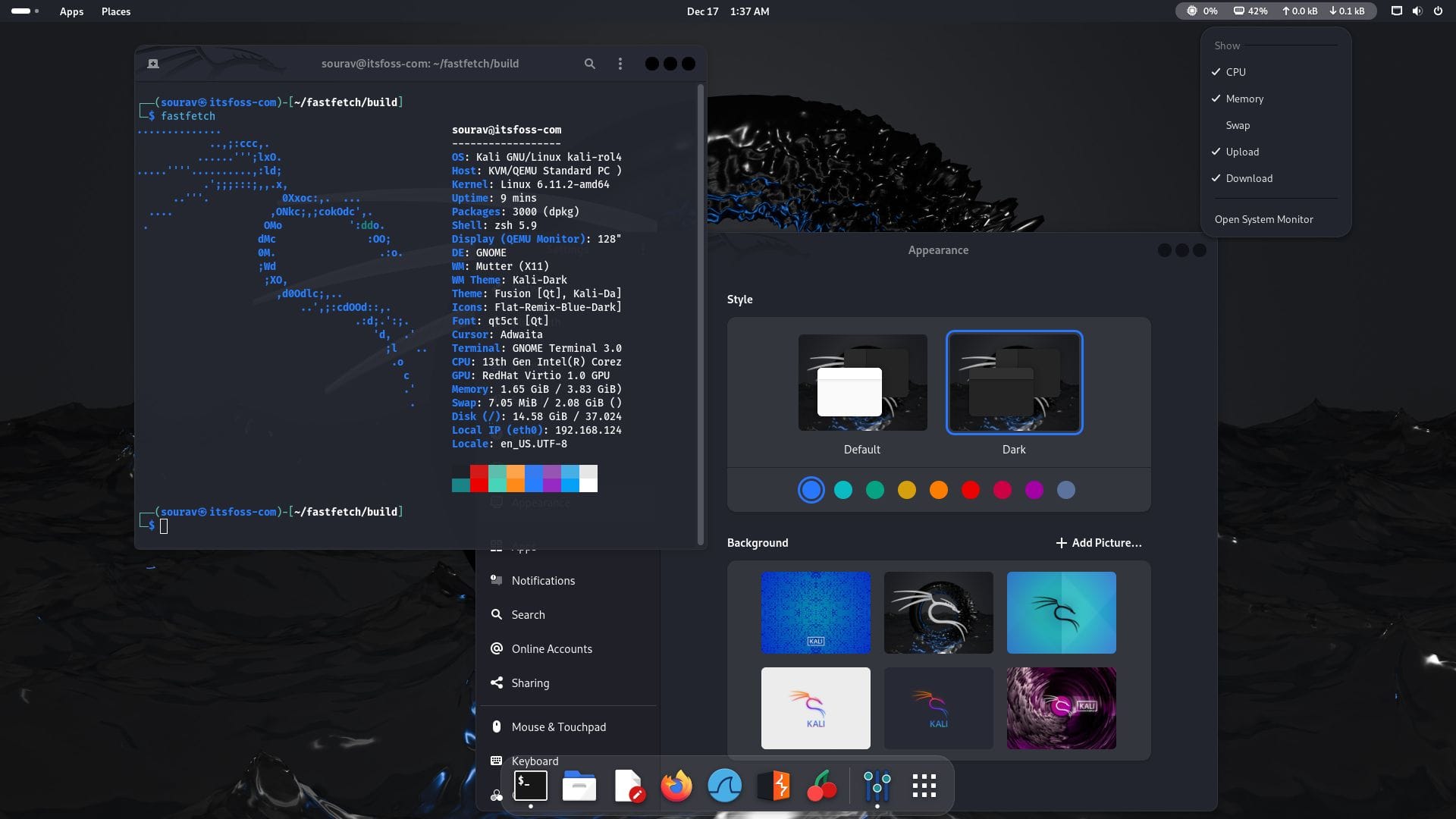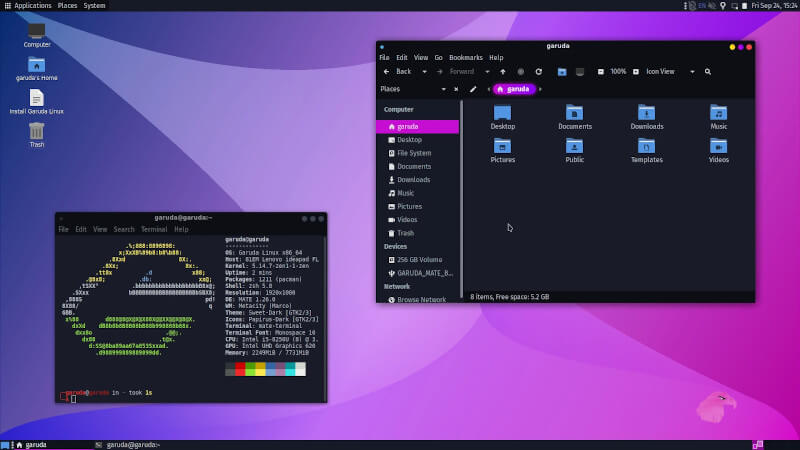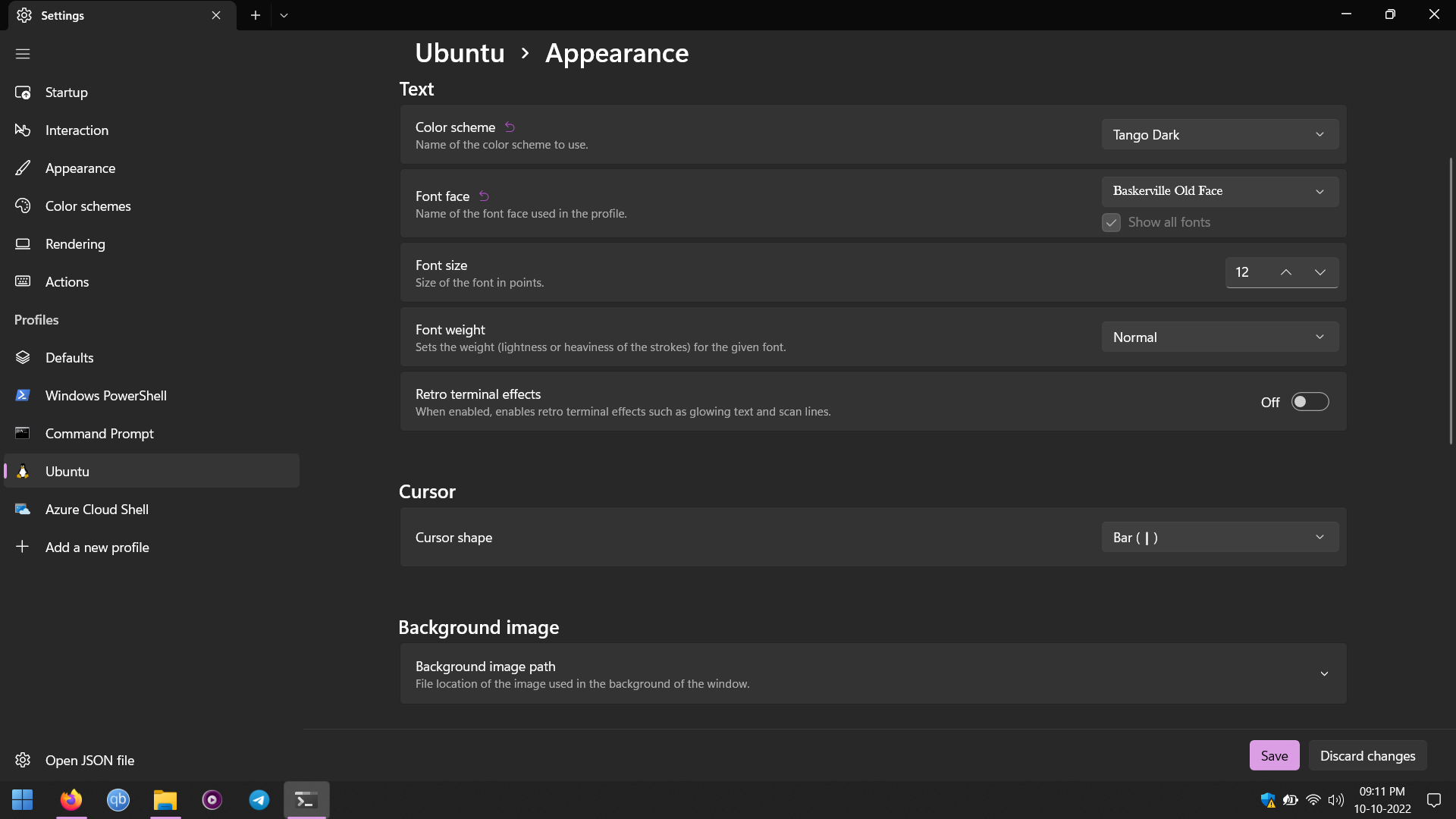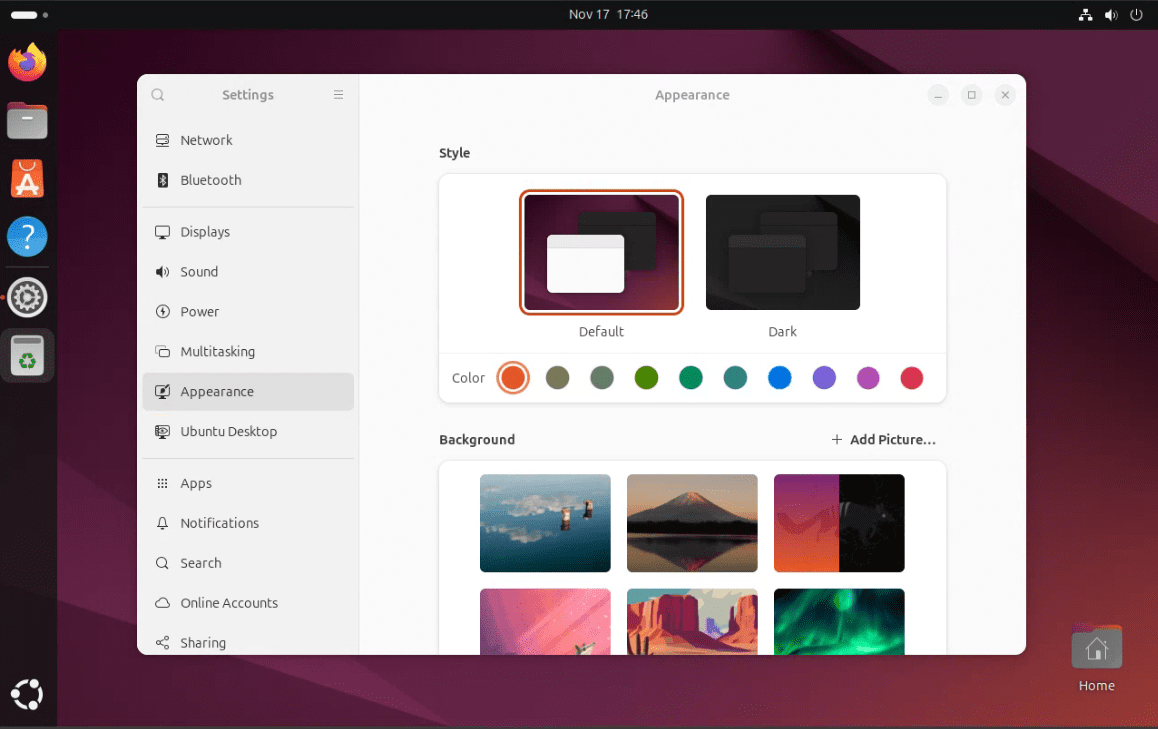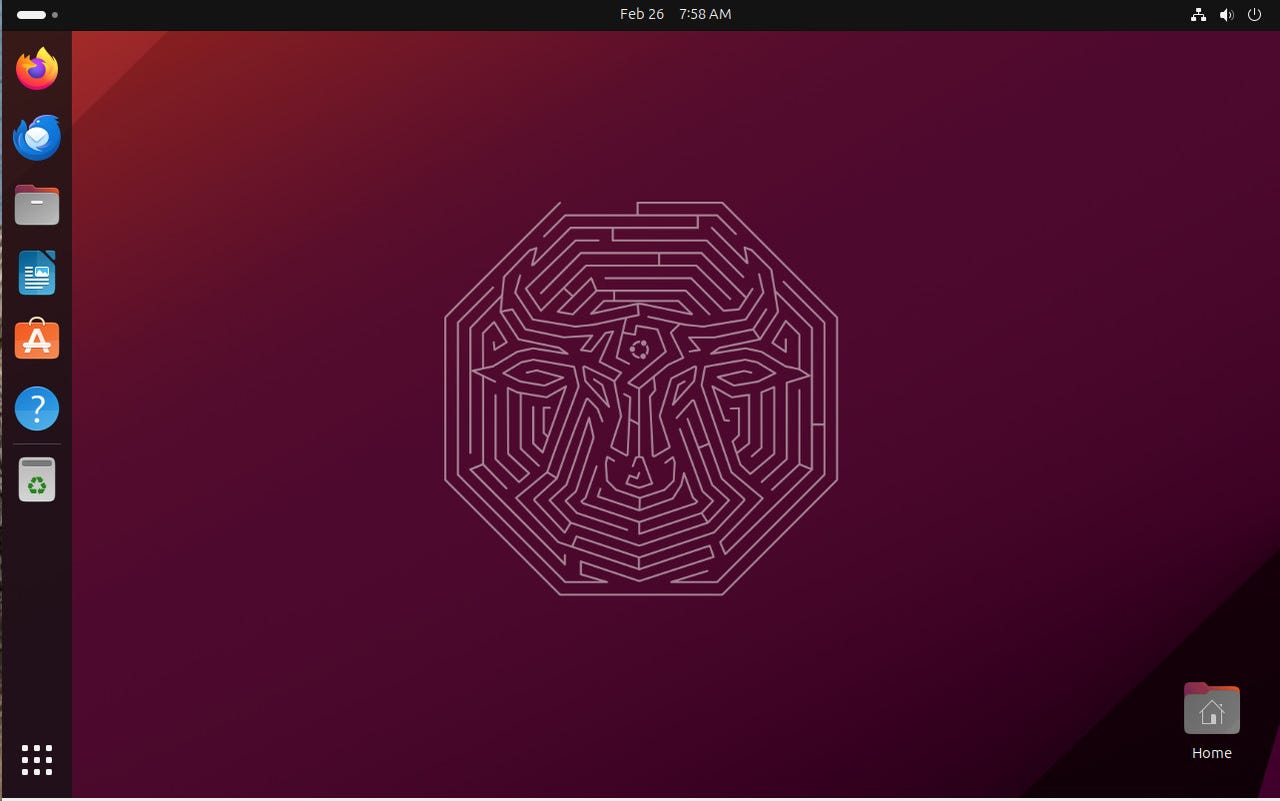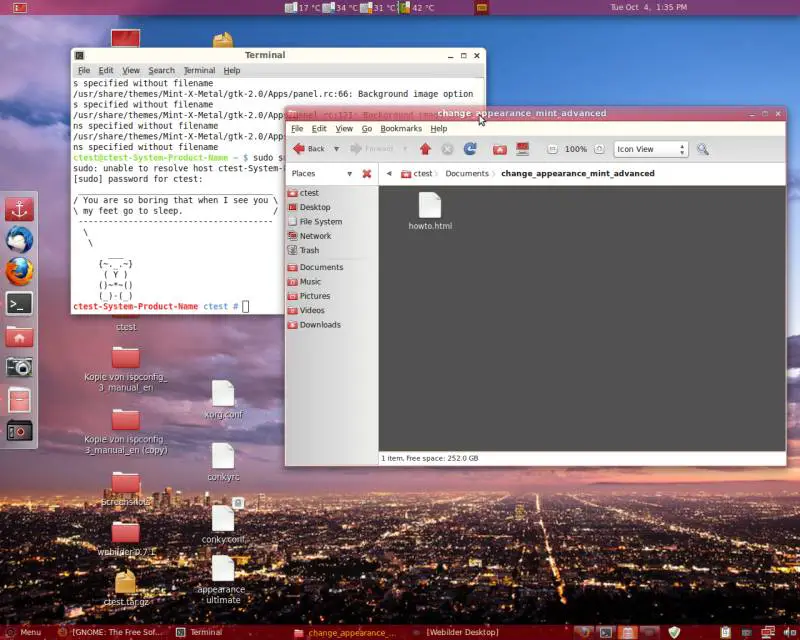
Okay, so picture this. Me, fresh out of Windows-land (shudder!), totally clueless about Linux, and desperately trying to make my new Ubuntu install look… well, not like everyone else's. I remember thinking, "There HAS to be a way to jazz up that boring login screen!" It was like showing up to a party wearing the same outfit as everyone else – totally mortifying, even though no one really cared. But I cared! Thus began my epic quest to conquer the Linux "page de garde".
And that, mes amis, is what we're talking about today: personalizing your Linux login screen. Because let's be honest, the default options are… functional. Like beige wallpaper in a doctor's office functional. We can do better, can't we? (Of course we can! You're reading this, which means you have excellent taste and a thirst for customization!)
Why Bother with Your "Page de Garde"?
Seriously though, why spend time tweaking something you only see for a few seconds? Here's my take:
- First Impressions: It's the first thing you see when you boot up. It sets the tone! A cool login screen can get you pumped for a productive day (or a day of procrastination, no judgement).
- Personalization: It's YOUR computer. Make it reflect YOUR style. Show off your favourite artwork, a funny meme, or even just a calming landscape.
- Security (Sort Of): Okay, it won't stop a hacker, but a custom image might deter casual snoops. Plus, it just looks more professional, even if you're just working on cat videos.
Getting Down to Business: Customizing Your Login Screen
Now, the specifics depend on your distribution (distro) and display manager. Are you rocking GNOME, KDE, XFCE, or something else entirely? (Knowing this is key, so do a little Googling if you're not sure!). But here are some general approaches:

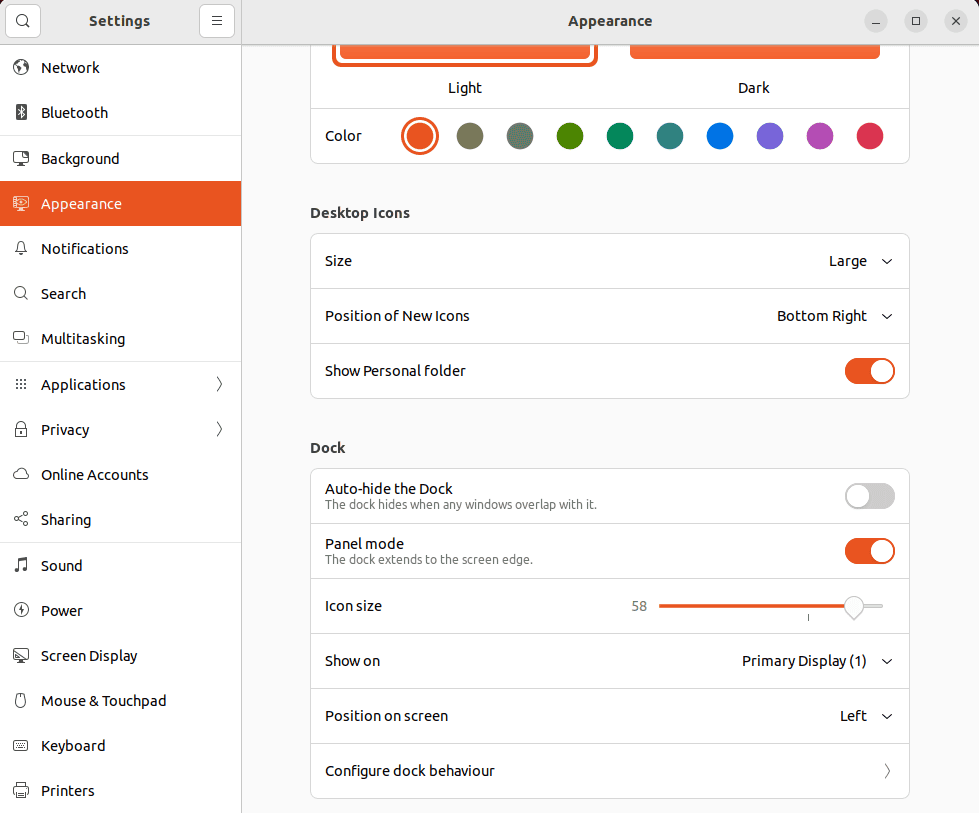
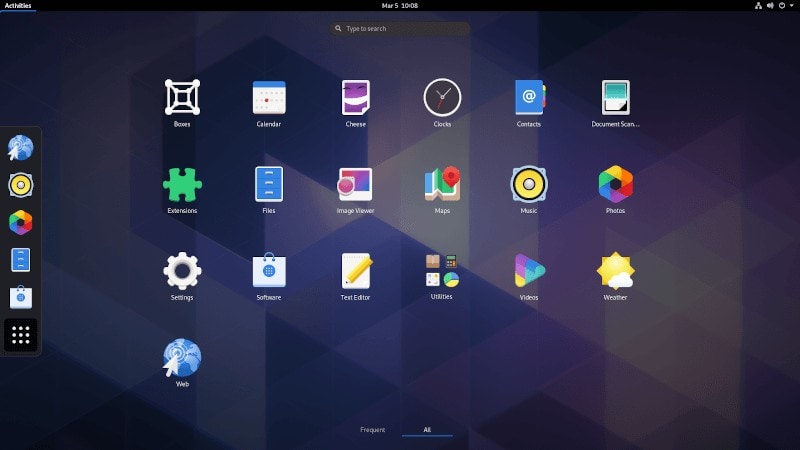
- GNOME: GSettings is your friend! You can use the command line (scary, I know, but trust me!) or a GUI tool like dconf Editor to tweak the background image, theme, and other settings. (Pro tip: Back up your current settings before you start messing around!).
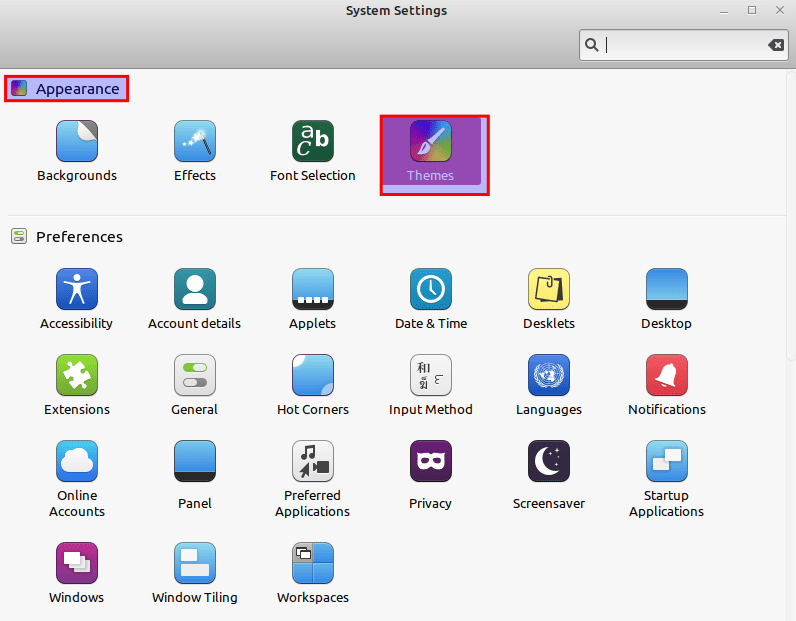
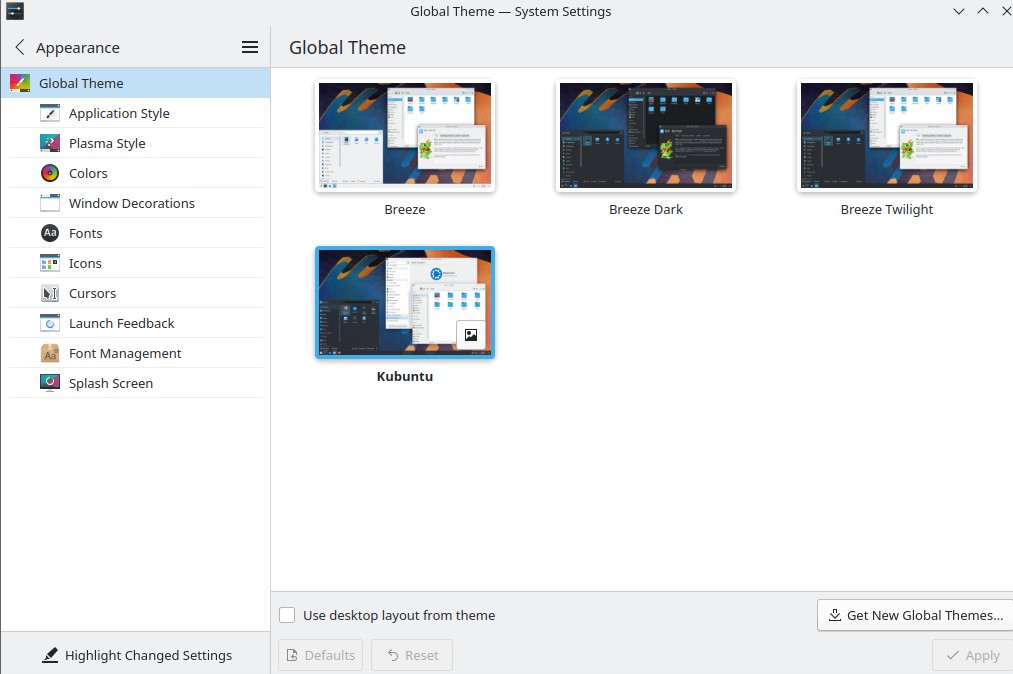
- KDE: KDE is a customization powerhouse! Head to System Settings -> Appearance -> Login Screen (SDDM). You'll find tons of themes to choose from, and you can even create your own.
- XFCE: XFCE is a bit more minimal, but you can still change the background using a tool like LightDM GTK+ Greeter settings (if you're using LightDM, that is).
Important Note: Don't just download random themes from untrusted sources! Stick to official repositories or well-known websites to avoid malware. Security first, always!
Themes, Themes Everywhere!
The best part about customizing your login screen is the sheer number of themes available. From minimalist designs to futuristic interfaces, there's something for everyone. Check out websites like Pling (formerly KDE Store) or search your distribution's package manager for "login theme" or "greeter theme."
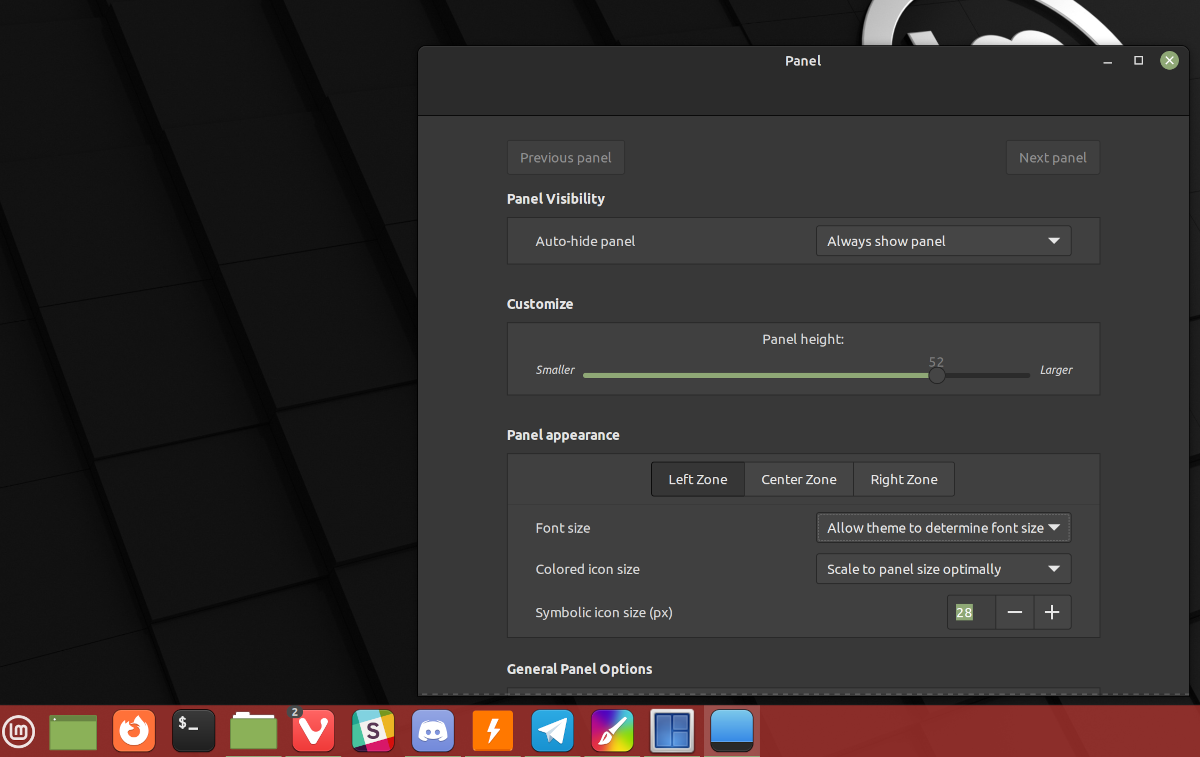
And remember, don't be afraid to experiment! Try different themes, fonts, and layouts until you find something you love. After all, it's YOUR "page de garde"! Have fun with it! (And maybe share your creations with the world – you might inspire someone else!)
So go forth and conquer that login screen! May your Linux experience be forever stylish and uniquely yours.